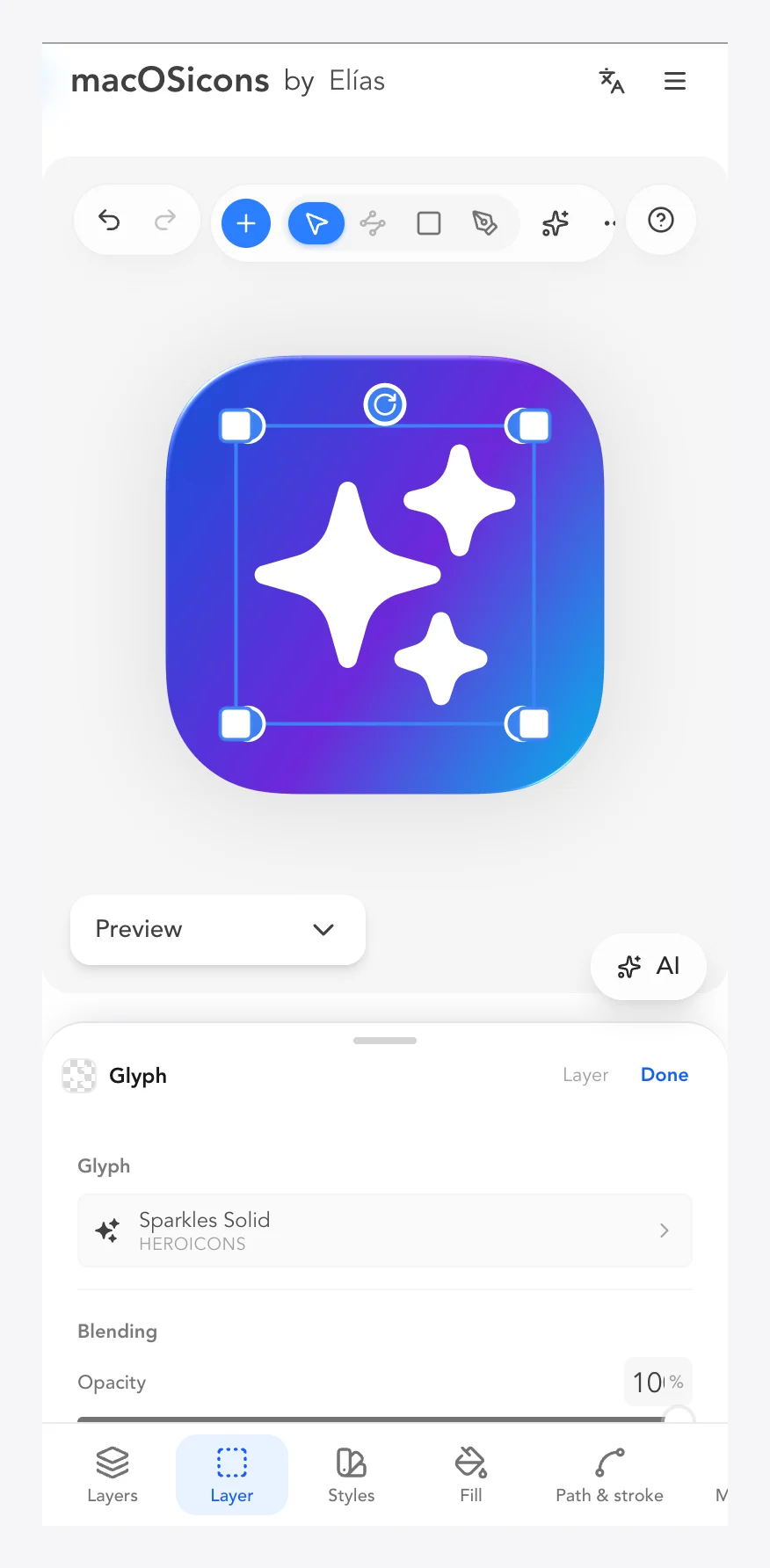
The 1024x1024 icon canvas, masks, backgrounds and document-level settings.
1024x1024 icon canvas
A vector editor that only does icons.
Every document is a 1024x1024 icon canvas with center-origin coordinates, so what you design is exactly what macOS and iOS expect. No artboards to configure, no export math to guess.
Steps
Create a new document from the workspace (macOS app icon, iOS app icon or Folder icon).
Design freely: the canvas is always icon-shaped and 1024x1024.
Export; every size and platform ladder is generated from it.
Tips
Positions are measured from the center: 0/0 is the middle of the icon.
Questions
What size is the editor canvas?
A fixed 1024x1024 icon canvas with center-origin coordinates. All exports scale from it, from 16px up to 4096px.
Do I need to set up artboards?
No, the document is the icon. Use Boards if you want several icons side by side in one session.
Clip the canvas to the macOS squircle, the iOS rounded square, the watchOS circle, or no mask at all. What you see inside the mask is what ships.
Steps
Open Document settings → Icon mask.
Pick macOS squircle, iOS, watchOS or None.
'Inner Icon' layers clip to this silhouette; 'Other Layers' can reach the edge.
Tips
Use the keyline grid to design safely inside the mask.
The same mask is available programmatically via the Icon API.
Questions
What does the macOS icon mask do?
It clips your design to the platform's official icon silhouette (squircle for macOS, rounded square for iOS, circle for watchOS) so the system never awkwardly crops your icon.
Why does my icon get cut off at the corners?
Your artwork is outside the icon mask. Move the layer to 'Inner Icon' in the layers panel, or set the mask to 'None' for a raw square export.
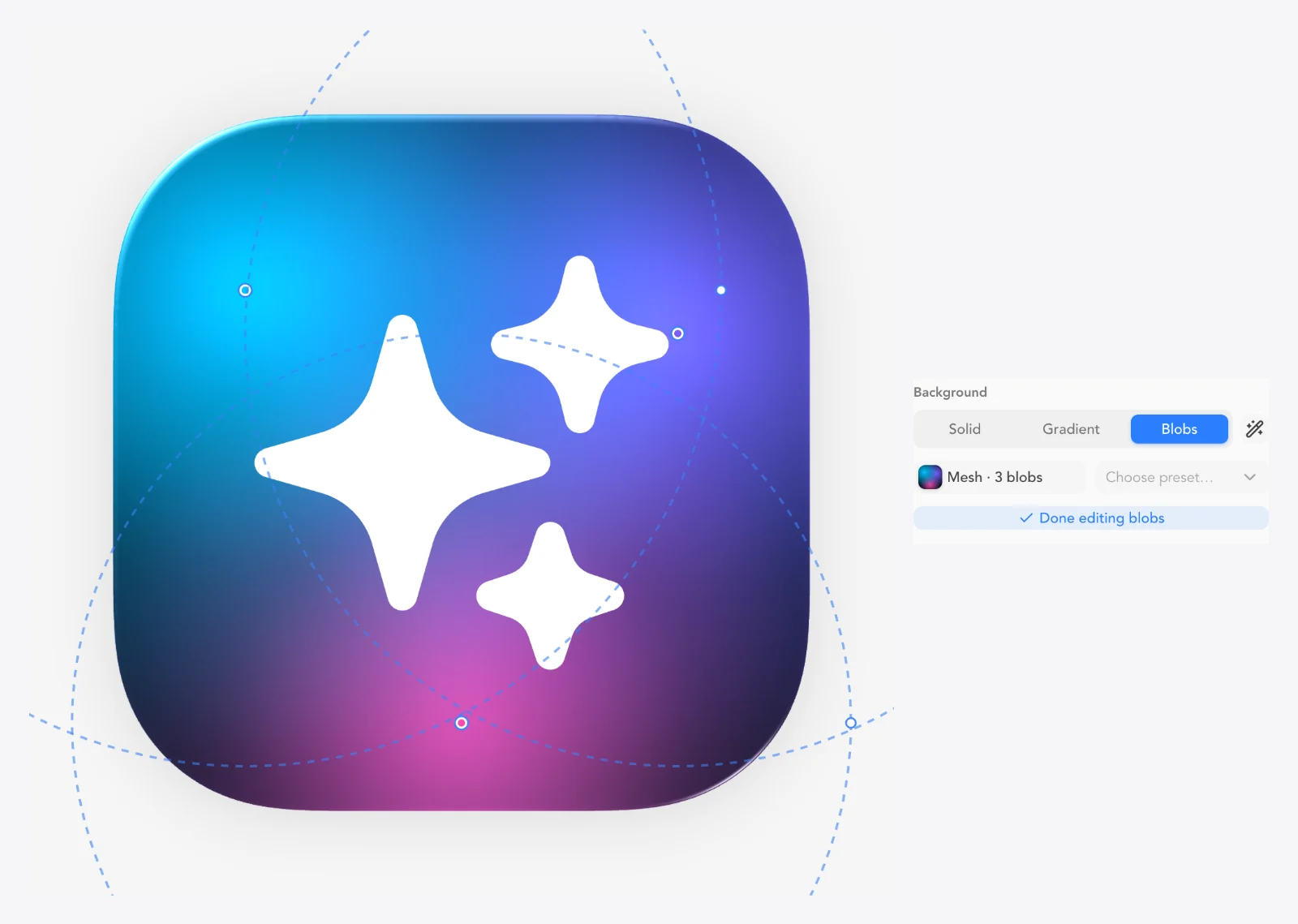
Set the icon background to a solid, a linear/radial/conic gradient, or a Blob 'mesh gradient' of up to 12 additive color blobs over a base color. Always clipped to the icon mask.
CEyedropper: sample a color into fill/stroke/background
Steps
Document settings → Background.
Choose Solid, Gradient (linear/radial/conic) or Blob.
For Blob: add blobs, pick colors, drag them on the canvas to move, drag the dashed ring to resize.
Start faster from a preset (vibrant, sunrise, ocean, aurora, candy, monochrome).
Tips
Try 'Suggest colors from icon' to derive colors from your artwork.
Blobs are additive, so overlaps brighten.
Questions
How do I make a mesh gradient background?
Document settings → Background → Blob. It layers up to 12 soft color blobs over a base color; drag them on the canvas to reshape the gradient.
How do I change the background color of my icon?
Document settings → Background → Solid, or press C to sample any color with the eyedropper.
Reads your artwork's colors and suggests backgrounds from them in five modes: Icon colors, Similar shades, Analogous, Complementary and Triadic. A solid background takes the swatch you click, a gradient takes the whole set as its stops, and a blob mesh gives each blob one of the colors.
Steps
Document settings → Background.
Click 'Suggest colors from icon'.
Pick a mode: Icon colors, Similar shades, Analogous, Complementary or Triadic.
Click a swatch for a solid background, or apply the set to a gradient or a blob mesh.
Tips
Complementary makes the icon stand out; Similar shades keeps it calm and tonal.
Questions
How do I pick a background that matches my icon?
Use 'Suggest colors from icon' in the Background section. It reads your artwork's colors and offers them as swatches, along with similar shades and analogous, complementary or triadic harmonies.
A global specular and refraction pass with bezel highlight, bottom highlight (linkable), highlight width and refraction 'sheen'. It makes the whole icon read like liquid glass, the way macOS does.
Steps
Document settings → Reflection.
Enable and set the light angle (0-360).
Adjust Highlight, Bottom highlight (linkable), Highlight width and Refraction.
Tips
Link Highlight and Bottom highlight to move both together.
Combine with the Glass material for extra depth.
Questions
How do I get the Apple liquid-glass sheen on my icon?
Enable Document → Reflection. It adds a global bezel highlight and refraction across the icon; link the top and bottom highlights for a symmetric look.
Icons stack many parts. Clicks land on what is drawn, so a ring's hole lets you click the glass under it; Cmd + Option + click steps down through everything under the pointer, and right-click → Select layer lists it. Double-click a group or boolean to isolate it, and press Cmd + Y for Outline view, which shows every layer as a thin outline.
Cmd + YToggle Outline view
Cmd + Option + ClickSelect the next layer under the pointer
EscapeLeave isolation
Steps
Cmd + Option + click (Ctrl + Alt on Windows) to select the next layer under the pointer, one level deeper each click.
Right-click the canvas and open Select layer to pick any layer under the pointer.
Double-click a group or boolean to isolate it: the rest dims and can't be clicked. Press Escape or Exit to leave.
Press Cmd + Y (Ctrl + Y) or use View → Outline view to see and click every layer by its outline.
Tips
In Outline view a click picks the layer whose outline is under the pointer, so parts hidden behind others are easy to reach.
Questions
How do I select a layer that is underneath another one?
Cmd + Option + click it (Ctrl + Alt on Windows) to step down through the stack, or right-click and choose it from Select layer.
Does Outline view change my export?
No. Outline view and isolation only change what the canvas shows while you edit; exports and thumbnails show the full artwork.
Layer types, stacking, folders, groups and boolean compounds.
Inner Icon & Other Layers sections
Safe shape in, full bleed out.
Layers live in two sections: 'Inner Icon' clips to the icon's safe shape, 'Other Layers' can extend to the canvas edge. The layer panel mirrors the boundary so you always know what gets masked.
Steps
Use the layers panel sections 'Inner Icon' and 'Other Layers'.
Drag a layer between sections to flip its boundary mode.
Inner Icon layers clip to the mask; Other Layers render to the edge.
Tips
Put glows and full-bleed backgrounds in 'Other Layers'.
Questions
Why is my layer getting clipped by the icon shape?
It's in the 'Inner Icon' section, which clips to the icon mask. Drag it to 'Other Layers' to let it reach the canvas edge.
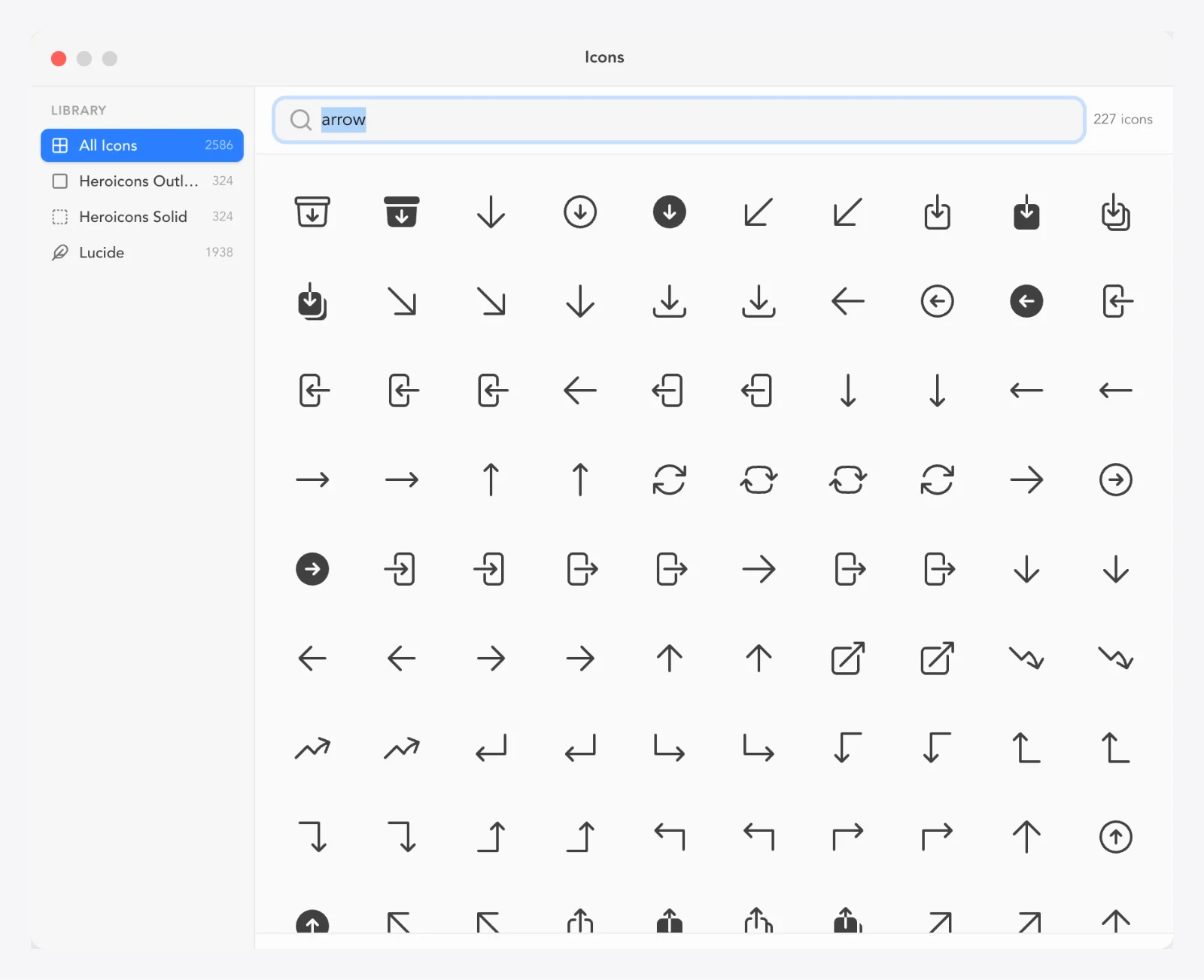
Image, Solid Fill, Gradient, Shape, Path, Icon (Heroicons & Lucide glyphs), SVG, Text, Liquid Glass Template and Bool compound layers. Everything stays live and editable, with no flattened mystery bitmaps.
Steps
Add layers from the toolbar (shape, text, icon, image, path…).
Edit each type in its dedicated inspector section.
Convert between types when needed (e.g. Shape → Path for point editing).
Tips
Icon layers tap a 200k+ searchable vector glyph library.
Questions
What kinds of layers can I add?
Ten: Image, Solid Fill, Gradient, Shape, Path, Icon (Heroicons/Lucide), SVG, Text, Liquid Glass Template and Bool compounds, each with its own inspector controls.
Can I edit an icon after placing it?
Yes, nothing is baked. Shapes, paths, text and materials stay fully editable until export.
A full layer tree with live thumbnails, visibility and lock toggles, drag-to-reorder (including into and out of folders), and drag-hover-to-expand for collapsed folders.
Cmd + ]Bring forward
Cmd + [Send backward
Cmd + Option + ] (Ctrl + Shift + ] on Windows and Linux)Bring to front
Cmd + Option + [ (Ctrl + Shift + [ on Windows and Linux)Send to back
Steps
Open the Layers tab in the panel.
Drag rows to restack or nest into folders (hover a collapsed folder to expand it).
Toggle the eye to hide, the lock to freeze a layer.
Tips
Boolean compound folders don't accept drops, so drill into them instead.
Questions
How do I move a layer behind another?
Drag it down in the layers panel. The topmost row renders in front. Drop onto a folder row to nest it. Or press Cmd + [ / Cmd + ] (Ctrl on Windows and Linux) to step it backward or forward; add Option (Shift on Windows and Linux) to send it all the way.
Group layers into named folders with drag-in/drag-out reordering. Deleting a folder keeps its children (re-parented), and folders can be renamed or duplicated.
Steps
Create a folder from the layer panel or context menu.
Drag layers into or out of it.
Rename inline; duplicate to clone the whole subtree.
Questions
What happens if I delete a folder?
Its layers are kept and re-parented one level up. Only the folder is removed.
Group layers with a shared morph identity ('Group as Morph') so they transform together as a single morphable unit, with dissolve-and-select-children when you need the pieces back.
Steps
Select layers and choose 'Group as Morph' from the toolbar.
Transform the morph group as a unit.
Ungroup the morph group, or dissolve it to select the children.
Questions
What is a morph group?
A group with a shared morph identity: the layers move and scale as one unit. Ungroup breaks the identity; dissolve selects the children.
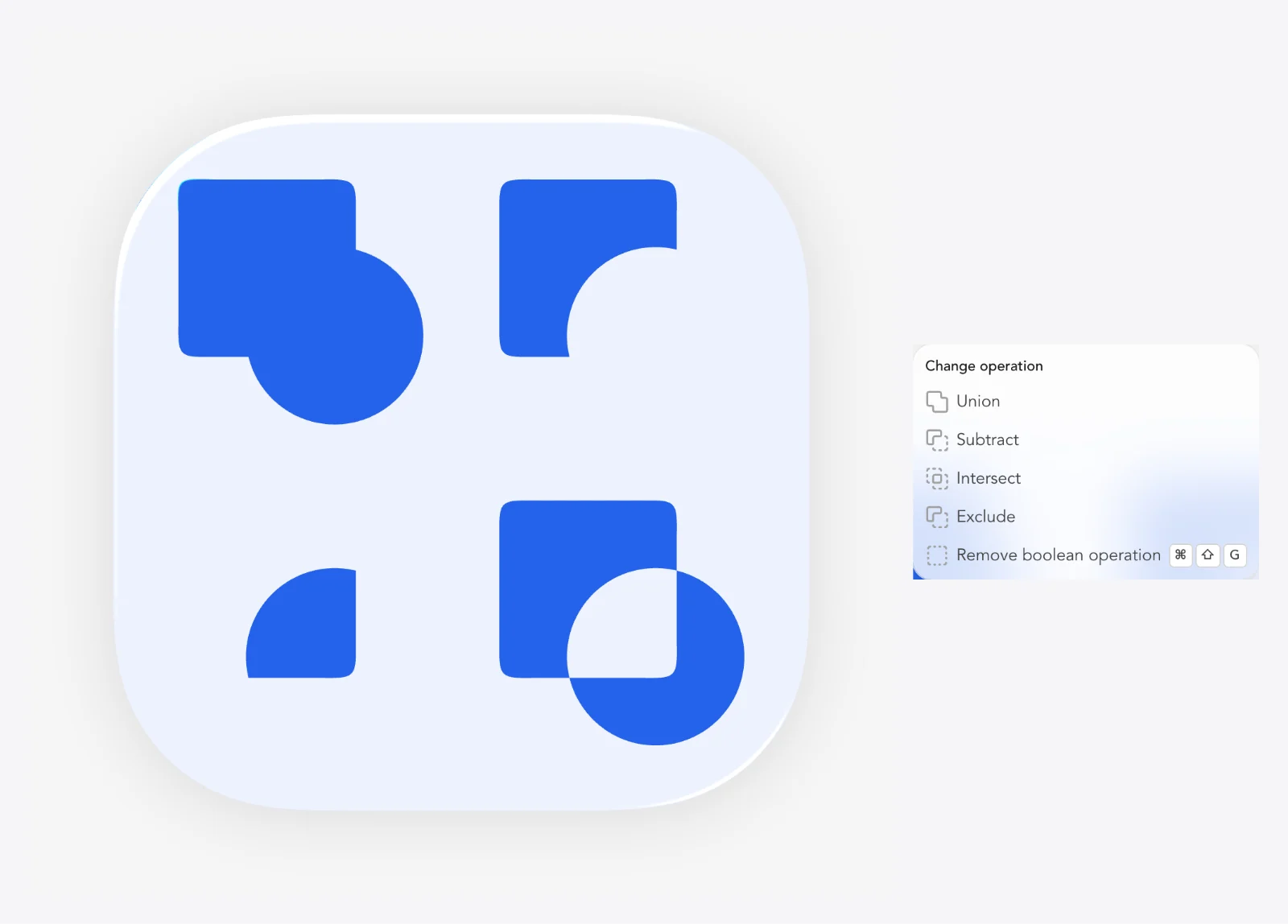
Combine shapes with Union / Subtract / Intersect / Exclude. The result is a live Bool compound with per-contour operations. Change a source shape and the compound updates.
EscapeExit one boolean drill-in level
Steps
Select two or more shape/path/SVG layers.
Pick Union, Subtract, Intersect or Exclude from the toolbar's boolean menu.
Drill into the Bool group to edit contours; Escape pops out one level.
Tips
Each contour's operation can be changed later.
Questions
How do I cut one shape out of another?
Select both and choose Subtract (or Exclude) from the boolean menu. It stays live: edit the source shapes and the result updates.
How do I edit the shapes inside a boolean result?
Drill into the Bool group (double-click or from the layer panel). Press Escape to step back out one level.
Copy/cut/paste layers (across browser tabs and the system clipboard), Smart duplicate that repeats your last drag delta, Copy Style / Paste Style to transfer looks, and per-section property copy (e.g. 'Copy Fill properties').
Cmd + Option + CCopy style (the selected layer's look)
Cmd + Option + VPaste style onto the selection
Steps
Copy/cut/paste layers from the context menu, which works across browser tabs.
Move or drag a layer, then Smart duplicate: each duplicate repeats the same offset.
Right-click → Copy Style (Cmd + Option + C), then Paste Style (Cmd + Option + V) on another layer, or copy a single inspector section's properties.
Tips
Smart duplicate is the classic transform-duplicate pattern from pro design tools.
Questions
How do I copy the look of one layer onto another?
Right-click the styled layer → Copy Style, then Paste Style on the target. To copy just fill, stroke or effects, use 'Copy … properties' on that inspector section.
How do I make evenly spaced duplicates?
Move or drag a layer, then Smart duplicate. Each duplicate repeats the same delta automatically.
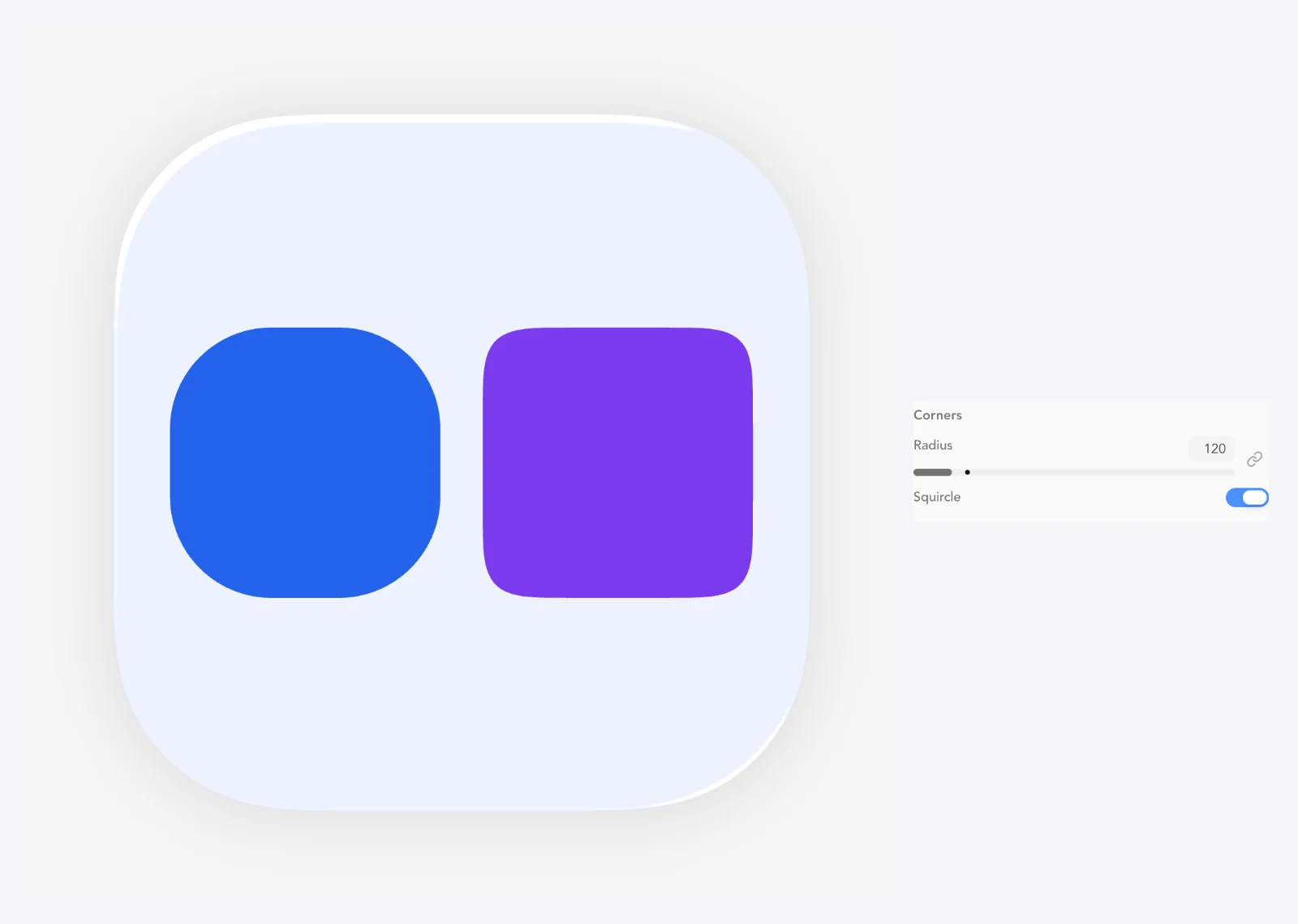
One radius or per-corner radii (link all corners, CSS-style clamping), plus a Squircle toggle for Apple continuous-curvature corners with adjustable sharpness (2-12). Paths and generated polygons, stars and arcs take a Smoothing amount on their rounded corners for the same continuous curvature, with an iOS preset (60%).
Steps
Select a shape and open Corners in the inspector.
Use 'Set each corner' for per-corner radii; 'Link all corners' for one value.
Enable Squircle for continuous curvature and set corner sides (sharpness 2-12).
On a path, set the corner radius, then raise Smoothing (or click iOS) for continuous corners.
Tips
Squircle matches Apple's shape language better than a plain large radius.
Questions
How do I get iOS-style squircle corners?
Select the shape and enable Squircle in the corner settings. 'Corner sides' (2-12) controls how tight the continuous curvature is.
Can I round only some corners?
Yes, enable 'Set each corner' and set TL/TR/BR/BL independently.
Dedicated tools in the toolbar, most with a single-key shortcut: Select (V), Edit points (A), the shape tools — Rectangle (R), Ellipse (O), Polygon and Star — Pen (P) for precise bezier drawing, Pencil (N) for freehand strokes, Line (L) and Distort (D).
VSelect tool
AEdit points tool
RRectangle tool
OEllipse tool
PPen tool
NPencil tool
LLine tool
DDistort tool
IMatch style tool
EnterFinish the pen path / toggle path edit on shape, SVG or text
EscapeFinish the pen path, cancel a pencil stroke or leave edit path
BackspaceRemove the last pen point while drawing
Shift (hold)Constrain to 45° while drawing with pen/line
Alt (hold)Break the handle while dragging a pen point
Space (hold)Move the pen point being placed
Steps
Pick a tool from the toolbar (or press V / A / R / O / P / N / L / D); the other shape tools are in the More tools menu, and the Pencil shares the Pen's slot.
Pen: click for corners, drag for curves (Option/Alt breaks the handle, Space moves the point, Shift keeps 45°); click the first point to close; Enter, Escape or a double-click finishes and keeps the path.
Line: drag to draw; Shift constrains the angle.
Edit points: drag anchors and handles (on a shape, it asks before converting it to a path); Distort: drag the four corners to warp.
Tips
Convert text or SVG to a path first for point-level editing.
Marquee-select points to move them together.
Questions
How do I draw a custom shape?
Use the Pen tool: click for corners and drag for curves, click the first point to close, or press Enter or Escape to finish an open path. Every drawing is a new layer; to cut a hole into a path, pick the Pen while editing that path's points. The Line tool draws straight segments and the Pencil draws freehand.
How do I edit the points of a shape?
Select the shape and press Enter (or choose Edit Path / A) for anchor and handle editing. Enter or Escape leaves.
Draw rectangles, ellipses, regular polygons and stars by dragging a box on the canvas, with Shift for squares, circles and regular shapes, Alt to draw from the centre and snapping to other layers. Ellipses turn into arcs, pies and rings, and polygons and stars keep their sides, depth and corner radius editable in the inspector.
RRectangle tool
OEllipse tool
Shift (hold)Square, circle or regular shape
Alt (hold)Draw from the centre
↑ / ↓More or fewer sides or points while dragging
EscapeCancel the shape, or go back to Select
Steps
Press R (Rectangle) or O (Ellipse), or pick Polygon or Star from the More tools menu.
Drag on the canvas: hold Shift for a square, circle or regular shape and Alt to draw from the centre; ↑ / ↓ change a polygon's sides or a star's points while dragging. A click places a default-size shape.
Edit the sides, a star's inner radius, the corner radius, or an ellipse's start, sweep and ring in the Shape section of the inspector.
Double-click a shape tool (or turn on Keep tool selected) to draw several shapes in a row; Escape goes back to Select.
Or drag the knobs on a selected ellipse, polygon or star: the arc's start and end, the ring, a star's depth and the corner radius (Shift for 15° or 5% steps).
Tips
Shapes snap to the edges and centres of other layers and to the canvas; turn snapping off in the View menu to place them freely.
Editing a generated shape's points turns it into a plain path, and its Shape controls go away.
Questions
How do I make a ring or a lens rim?
Draw an ellipse (O, with Shift for a circle) and raise Ring in the inspector's Shape section. Lower Sweep for an arc or a gauge.
How do I draw several shapes without picking the tool again?
Double-click the tool in the toolbar, or turn on Keep tool selected in the More tools menu. A small lock shows on the tool; Escape goes back to Select.
Draw freehand with a mouse, trackpad, finger or Apple Pencil. When you lift, the stroke is smoothed into a bezier path with only a few anchor points, ready to edit like any other path.
NPencil tool
Shift (hold)Draw a straight segment
EscapeCancel the stroke being drawn
Steps
Pick the Pencil from the Pen's toolbar slot (or press N).
Draw a stroke. End near where you started to close it into a filled shape.
Hold Shift to draw straight segments.
Adjust Smoothing in the bar above the canvas (it stays there with tool hints turned off): low follows every wiggle, high gives the smoothest curve.
Tips
Use Edit points (A) afterwards to fine-tune the curve.
The Smoothing setting is remembered in this browser.
Questions
Why does my drawing have so few points?
The Pencil fits smooth curves through your stroke and keeps only the anchors it needs within the smoothing tolerance, so the path stays easy to edit. Lower Smoothing to follow the stroke more closely.
Edit anchors and in/out handles with corner, smooth, mirrored or independent point types. Drag a segment to bend it (Option-drag moves it), Option-click or double-click a segment to select its subpath, and right-click for the point menu (point type, corner radius, join, cut, delete, subpaths, transform, distribute). Marquee-select points, option-click to remove, click the dot on a segment to add one, join endpoints (Cmd+J), break continuity (Shift+Delete) vs delete (Delete), set the selected points' X/Y/W/H in the inspector, snap anchors and distribute points. Select two or more points to scale or rotate them from the box drawn around them.
Cmd + JJoin selected path points/endpoints
DeleteDelete points keeping continuity
Shift + DeleteBreak path at selection
Steps
Press Enter on a path (or choose Edit Path) to enter point editing.
Drag anchors, handles or segments (a segment bends); double-click a point to switch between corner and smooth, or pick its type from the right-click menu.
Option-click a point to remove it; Shift-click an edge to add one.
Bring Figma, Illustrator and Sketch artwork in, ready to edit.
Paste or drop a multi-color SVG and every shape becomes its own editable path layer: fills, gradients, strokes (with their caps, joins and dashes), opacity and shadows carried over, groups as folders, holes as hole contours and clip paths as layer masks. Single-color icons still land as one recolorable SVG layer.
Steps
Copy the artwork as SVG in Figma, Illustrator or Sketch, or export an .svg file.
Paste onto the canvas, or drop the file on it.
Edit the layers and folders it creates, or click 'Import as image instead' in the toast to keep it as one picture.
Tips
Very detailed files merge neighboring same-color shapes into one layer; past 300 layers they import as an image instead.
Questions
Why did my SVG come in as a single layer?
An SVG that paints one flat color imports as one recolorable SVG layer; use Convert to Path to edit its outline. Multi-color artwork imports as separate layers.
What doesn't carry over?
Filters other than blur and drop or inner shadows, soft masks, pattern and image fills, embedded images and live text. The import toast lists anything it left out.
Turn strokes into shapes, grow edges, tidy anchors.
The Path menu reshapes paths in one step: Outline stroke turns a stroke into a filled shape, Offset path grows or insets an outline by a distance, Add highlight lays a gloss crescent along the edge facing the light, Simplify removes anchors the outline doesn't need, Smooth turns corners into curves, Reverse direction swaps an open stroke's ends, and Make / Release compound path merges shapes into one path with holes or splits it back into layers. Repeat and Repeat again live here too.
Cmd + Option + OOutline stroke
Steps
Select a shape or path and open Path operations in the toolbar, Path in the layer's context menu, or search the command palette (Cmd + K).
Pick an operation. Offset path… and Simplify… open a small dialog that shows the result (its size, or the anchor count) before you apply: set the distance (negative insets) and the corners, or the tolerance, then Apply.
Make compound path combines shapes into one path (shapes inside others become holes); Release compound path splits every subpath into its own layer.
Tips
Smooth works on the selected points only while you edit points.
The Path & stroke section's Subpaths list sets which subpaths of a compound path fill and which cut holes.
Questions
How do I turn a stroke into a shape?
Select the layer and choose Path → Outline stroke (Cmd + Option + O). The stroke becomes a filled path you can recolor, give a material or cut with booleans.
How do I make a thinner or thicker copy of a shape's outline?
Choose Path → Offset path…, enter a distance (negative to inset), pick round or sharp corners and leave Keep original on to get a new layer next to the original.
Grilles, aperture blades and lens rings in one go.
Copy a shape round a centre, across a grid (square or honeycomb) or as concentric rings. Every copy lands in one path layer, so even hundreds of copies stay fast; the copies can also be cut as holes into a body, or made separate layers in a folder.
Steps
Select a shape or path and choose Path → Repeat… (layer context menu or the toolbar's Path operations menu).
Pick Radial, Grid or Concentric and adjust the copies, gaps or ring step while the canvas previews the result.
Choose the centre and the result (one layer, separate layers, or holes cut into another layer), then Apply.
Tips
Turn off Rotate copies to keep holes or dots upright round a circle.
A sweep under 360° includes both ends, handy for gauge ticks.
Questions
How do I make a speaker or microphone grille?
Draw one small circle and the grille body, select the circle and choose Repeat…, pick Grid with the Honeycomb layout and set Result to 'Cut holes into' the body. Only whole holes inside the body are kept, and they all live in the body's own layer.
How do I repeat the same pattern on another shape?
Select the new shape and choose Path → Repeat again. It reuses the last Repeat's settings.
Fill layers with a solid or gradients, including a multi-gradient stack (shapeGradients) where several ordered gradients live on one vector layer, each with its own type, angle, geometry and interpolation. Fill can be disabled for stroke-only shapes.
CEyedropper for fill/stroke/background
Steps
Open the Fill section in the inspector.
Choose Solid or Gradient; add multiple gradients to stack them.
Edit stops on the gradient bar or with on-canvas gradient handles.
Tips
On-canvas handles let you drag linear and radial gradient geometry directly.
Questions
Can I put more than one gradient on a shape?
Yes. The multi-gradient stack in the Fill section holds several gradients on one layer, each with its own type, angle and color space.
How do I make a stroke-only shape?
Disable Fill in the Fill section and style the Stroke instead.
Linear (angle, start/end), radial (center, radius, and an ellipse you can squash and turn) and conic (center, start angle) gradients with a full stop editor, on-canvas drag handles, and interpolation color spaces (classic, oklab and oklch) for vivid, non-gray blends. Conic sweeps are what brushed metal, lens rings and knobs are made of.
Steps
Select a gradient fill or stroke.
Edit stops in the stops editor; drag on-canvas handles for geometry.
Set interpolation to oklab or oklch for more vivid mid-blends.
Tips
Radial gradients expose their center, radius and ellipse (aspect, rotation) as numbers and handles; conic gradients their center and start angle.
Questions
Why do my gradient colors look muddy in the middle?
Switch interpolation from classic RGB to oklab or oklch. They keep blends vivid instead of passing through gray.
How do I change a gradient's angle?
Use the angle field in the gradient controls, or drag the linear gradient handles on the canvas.
How do I make a brushed-metal ring or a camera lens?
Set the gradient type to Conic and alternate light and dark stops (or start from the Brushed Metal preset). Drag the centre and the angle knob on the canvas; stack a squashed radial on top for the glossy highlight.
Outlines with color or gradient, width 0-128, position inner/outer/center, rounded, square or butt caps, miter (with a miter limit), round or bevel joins, dashed or dotted patterns with an offset, optional stroke background blur (frosted ring) and a 'Material on Stroke' mode, with live preview.
Steps
Open the Stroke section and enable it.
Set width, color (solid or gradient) and position (inner/outer/center).
Pick caps (rounded, square or butt; they end open paths and every dash) and joins (miter, round or bevel; the miter limit cuts very sharp corners flat).
Under Dashes choose Dashed, Dotted or Custom: type dash and gap lengths in px (e.g. 8 4) and slide them along the outline with Dash offset.
Enable stroke background blur for a frosted-glass ring.
Tips
Stroke background blur makes the ring look frosted over whatever is behind it.
Joins, miter limit and dashes apply to shape and path outlines; an icon or SVG stroke is grown from its artwork instead.
Questions
How do I add an outline inside my shape?
Enable Stroke and set Position to 'inner'. 'outer' draws outside the edge, 'center' straddles it.
Can strokes be gradients?
Yes. Switch the stroke kind to gradient and edit its stops and interpolation like any fill.
How do I make a dashed or dotted outline?
In the Stroke controls set Dashes to Dashed or Dotted, or to Custom to type your own dash and gap lengths in px (e.g. 8 4). A 0 dash with round caps draws dots; Dash offset slides the pattern along the outline.
Flat, Clay, Glass and Emboss materials, lighting and depth maps.
Materials (Flat, Clay, Glass, Emboss)
The materials macOS actually uses.
Every vector layer can be Flat, Clay (pillowy plasticine), Glass (refractive liquid glass) or Emboss (carved into the surface behind). It's the signature look of the editor, rendered live with WebGL.
Steps
Select a shape, path, text or SVG layer.
Open the Material section and pick Flat, Clay, Glass or Emboss.
Tune the material's sliders (see the Glass/Clay/Emboss features).
Tips
Combine with Document → Reflection for a whole-icon gloss.
Select your layer and set Material to Glass or Clay. Glass refracts what's behind it; Clay gives a pillowy plasticine look; Emboss carves the shape into the surface behind.
Which materials can be combined?
One material per layer (Flat, Clay, Glass and Emboss are mutually exclusive), but layers stack, so you can put glass over clay layers. Use Group Liquid Glass to fuse several layers into one glass surface.
A refractive glass material with Bezel (10-140), Thickness (0-180), Curvature (-1..1), Chroma (chromatic aberration 0-18), Frost (0-32), Specular (0-1), Opposite specular with width (the twin edge reflections Apple uses), Tint color and tint strength, per-layer or canvas-linked light angle, and depth-map silhouette mode.
Steps
Set a layer's Material to Glass.
Adjust Bezel, Thickness and Curvature for the body of the glass.
Add Frost for milkiness and Chroma for color-fringing refraction.
Enable Opposite specular + width for the twin highlight look.
Use Tint color/strength for colored glass; link the light angle to the canvas light to keep layers consistent.
Tips
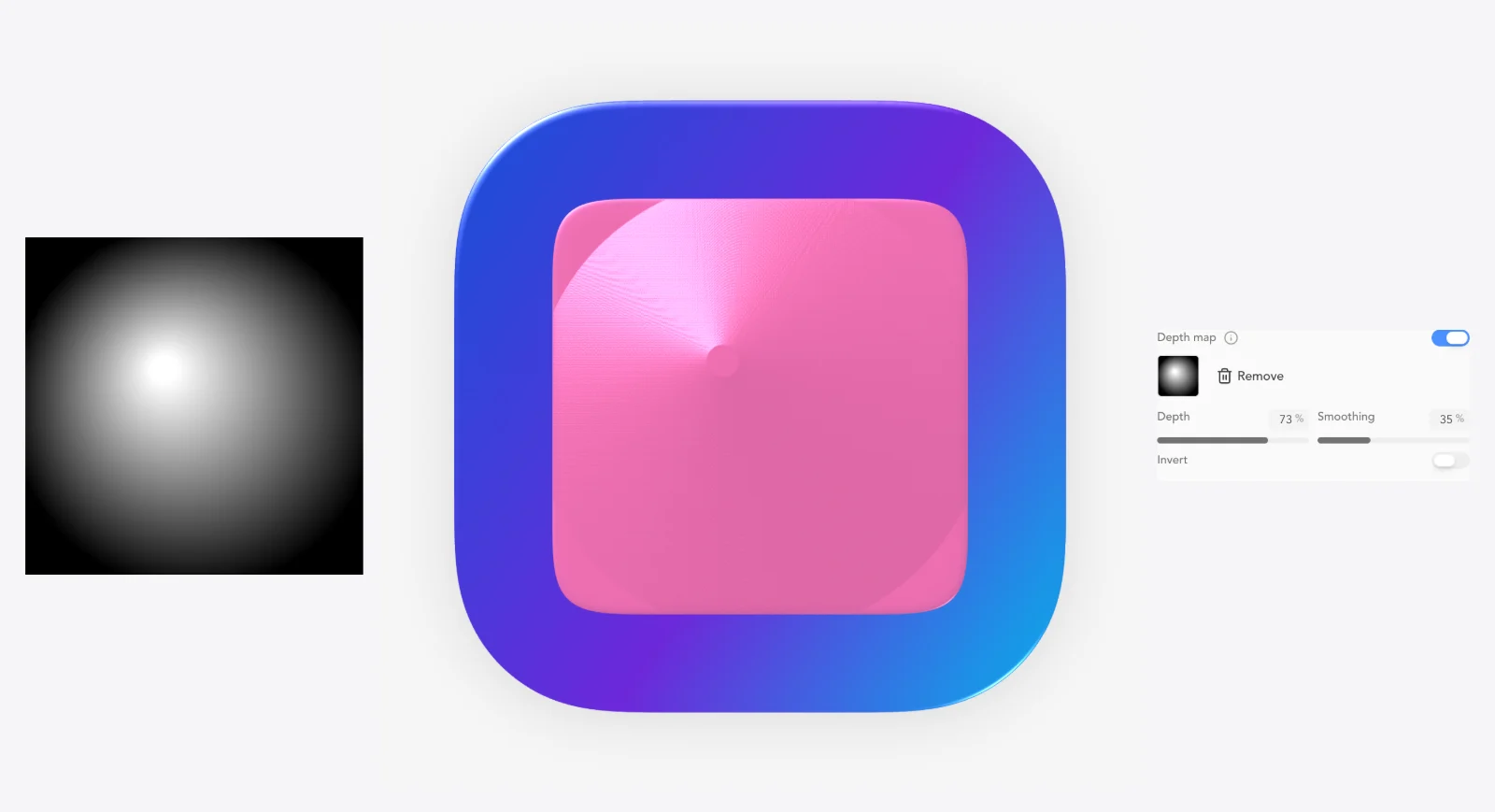
A depth map gives refraction a proper 3D silhouette.
'Material on Stroke' paints the material just on the outline.
Questions
How do I make a liquid glass icon?
Set Material → Glass, raise Thickness and Curvature, add a little Chroma and Frost, and enable Opposite specular for the twin Apple edge highlights. Document → Reflection adds the global gloss.
What does Chroma do in the glass material?
Chroma is chromatic aberration. It splits colors at the glass edges for a refractive, prism-like fringe.
A soft 3D clay material with Bezel, Thickness, Curvature, Body refraction, Rim refraction, Specular (linkable), Softness, Opposite specular + width, Edge darkening + width, and per-layer or canvas-linked light angle.
Steps
Set a layer's Material to Clay.
Adjust Bezel, Thickness and Curvature for the puffiness.
Use Softness and Edge darkening to shape the shadowing.
Set Body/Rim refraction for translucent clay looks.
Tips
Link the specular pair for a single highlight; unlink for dual-source lighting.
Questions
How do I make a clay / 3D puff icon?
Material → Clay. Raise Thickness and lower Softness for a tighter plasticine puff; Edge darkening adds contact shading. Basic mode's 'Puffiness' slider does the same in one control.
A global reflection light angle that all materials can follow, or per-layer glass/clay light angles for mixed lighting. 'Confine to mask' keeps highlights inside the icon silhouette.
Steps
Set the light angle in Document settings or the Material section.
Toggle 'use canvas light' on a layer to follow the global angle, or give it its own.
Enable 'Confine to mask' to clip highlights to the icon shape.
Tips
A 315° (top-left) light matches macOS icon lighting conventions.
Questions
How do I keep highlights consistent across layers?
Turn on 'use canvas light' for each material layer so they all follow the document's global light angle.
Beginner-friendly macros that drive multiple material parameters at once (Glassiness, Puffiness and Shadow, 0-100) losslessly, so you can drop into advanced controls later with nothing lost.
Steps
Switch the inspector to Basic mode.
Drag Glassiness, Puffiness or Shadow.
Open Advanced at any time. Every underlying value is intact.
Questions
I'm overwhelmed by material sliders. Where do I start?
Basic mode's three macros: Glassiness, Puffiness and Shadow. They set many parameters at once and are fully reversible.
One-click looks applied to the current selection: glossy3d, softClay, pillow, ceramic, liquidGlassLook, frostedGlass, crystal and chrome. Each preset writes full material setups you can keep tuning.
Steps
Select one or more layers.
Open the style presets menu.
Click a preset (e.g. frostedGlass) and keep refining the material sliders.
Tips
The AI assistant can apply presets too: 'Make it frosted glass'.
Questions
Is there a quick way to get a professional material look?
Apply a style preset (glossy3d, softClay, pillow, ceramic, liquidGlassLook, frostedGlass, crystal, chrome) to the selection, then fine-tune.
Reuse a look across the parts of an icon. The Styles section of the inspector applies built-in finishes (brushed aluminium, polished chrome, glossy red LED, orange plastic, dark lens glass, frosted glass, soft emboss and matte black) and looks you save from your own layers. Match style (I) gives the selection the look of any layer you click, and Copy / Paste style (Cmd + Option + C / V) carries one between layers. A look is the fill and its gradients, the stroke, shadows, effects and material, never the shape or its place.
IMatch style: click a layer to give the selection its look
Steps
Select the layers to restyle and open Styles in the inspector.
Click a finish to apply it, or save the selected layer's look under a name to reuse it later.
Or press I (Match style) and click the layer whose look the selection should take.
Tips
Rename or delete a saved style from its menu in the Styles section.
Questions
How do I make several parts look the same?
Select them, press I and click the part that already has the look. Fill, stroke, shadows, effects and material are copied in one undo step; shapes and positions stay.
Where are my saved styles kept?
In this browser (its local storage), so they are there in every document you open on it. They are not synced to your account yet, and clearing the browser's site data removes them.
Preset glass effect stacks as a layer type (liquidGlass, frostedMetal, deepShadow, sideGlow or custom), plus effect variants (topSpecular, innerShadow, rimLight, sideReflection, metalSheen) with intensity controls.
Steps
Add a Liquid Glass Template layer.
Pick a template: liquidGlass, frostedMetal, deepShadow, sideGlow or custom.
Toggle effect variants and set their intensities.
Tips
Start from a template and swap in your own artwork underneath.
Questions
What are Liquid Glass template layers?
Pre-built glass effect stacks (liquidGlass, frostedMetal, deepShadow, sideGlow or custom) with toggles for top specular, inner shadow, rim light, side reflection and metal sheen.
The new-document chooser starts you from a blank canvas, a designed icon template (App Store, WebBites, macOSicons and a glass macOSicons icon), a gradient or solid background, one of your own saved templates, or any project in the community gallery. Every template opens as a full, editable document with its materials set up, not a flattened image.
Steps
Create a new document.
Pick Blank, a template or a background, or switch to My templates or Community.
Save any document as a template from its menu on the documents page (Save as template).
Swap the artwork for your own and retune the materials.
Tips
Save a finished document as a template to reuse its setup across a whole icon set.
Questions
Do you have icon templates I can start from?
Yes. The new-document chooser has designed icon templates, gradient and solid backgrounds, your own saved templates and every community project. They open as fully editable documents with their materials set up.
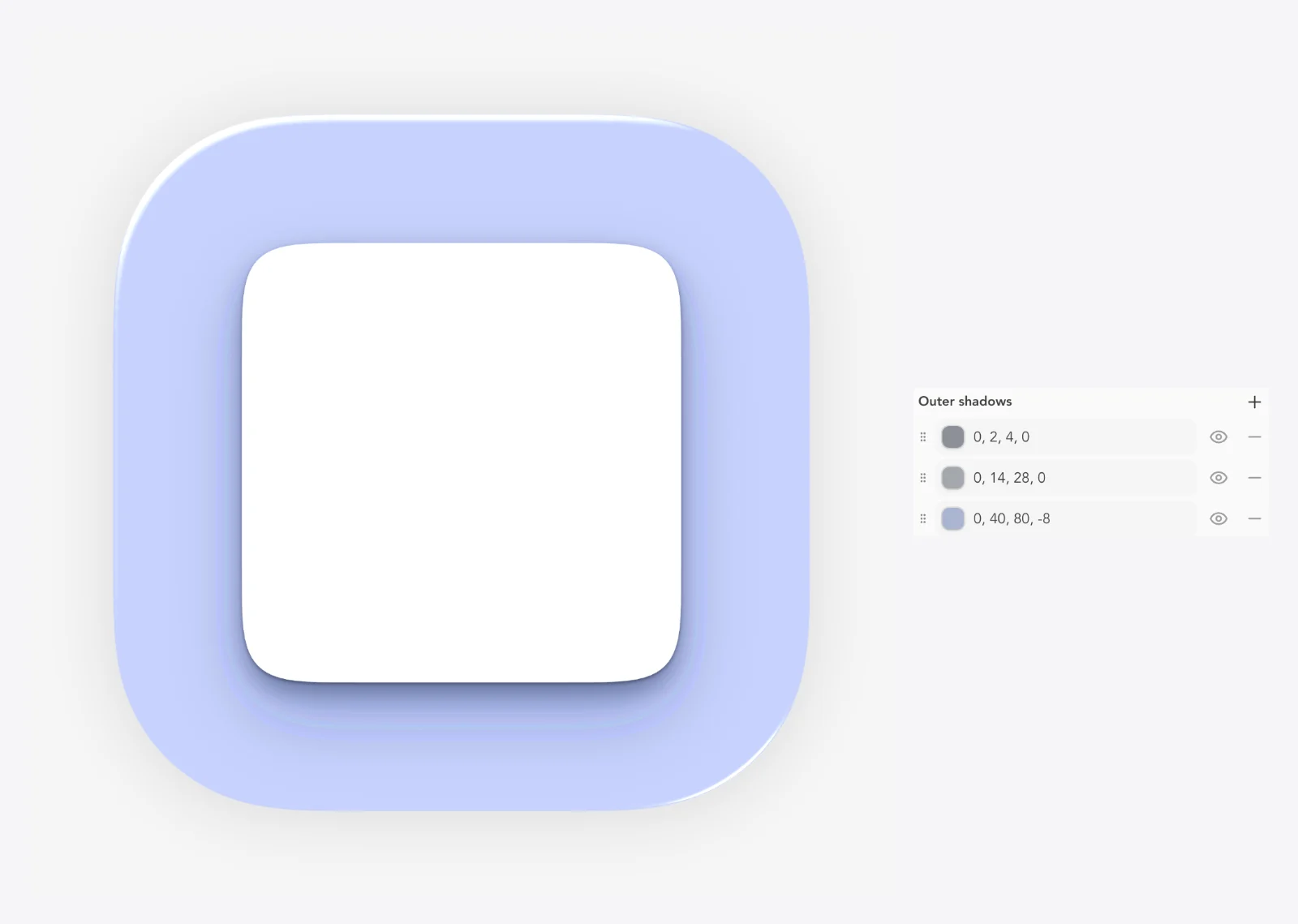
An unlimited shadow list per layer with outer and inner shadows: color, opacity, blur, spread, offset and visibility. Smart options: use the layer's own color, sample the surrounding color beneath, darkness control, and show-behind-transparent-areas so glass shadows bleed correctly.
Steps
Select a layer → Shadows.
Add shadows and set type (outer/inner), color, blur, spread and offset.
Use 'use layer color' or 'use surrounding color' for automatic shading; the first outer shadow drives the glass drop shadow.
Tips
Stack two shadows (tight + wide) for convincing contact depth.
Questions
How do I add a soft drop shadow?
Effects → Shadows → add an outer shadow. Raise blur and lower opacity for softness; 'use surrounding color' shades from what's beneath the layer.
Why doesn't my shadow show through my glass?
Enable 'show behind transparent areas' so the shadow bleeds through the transparent parts. That's how glass casts a real shadow.
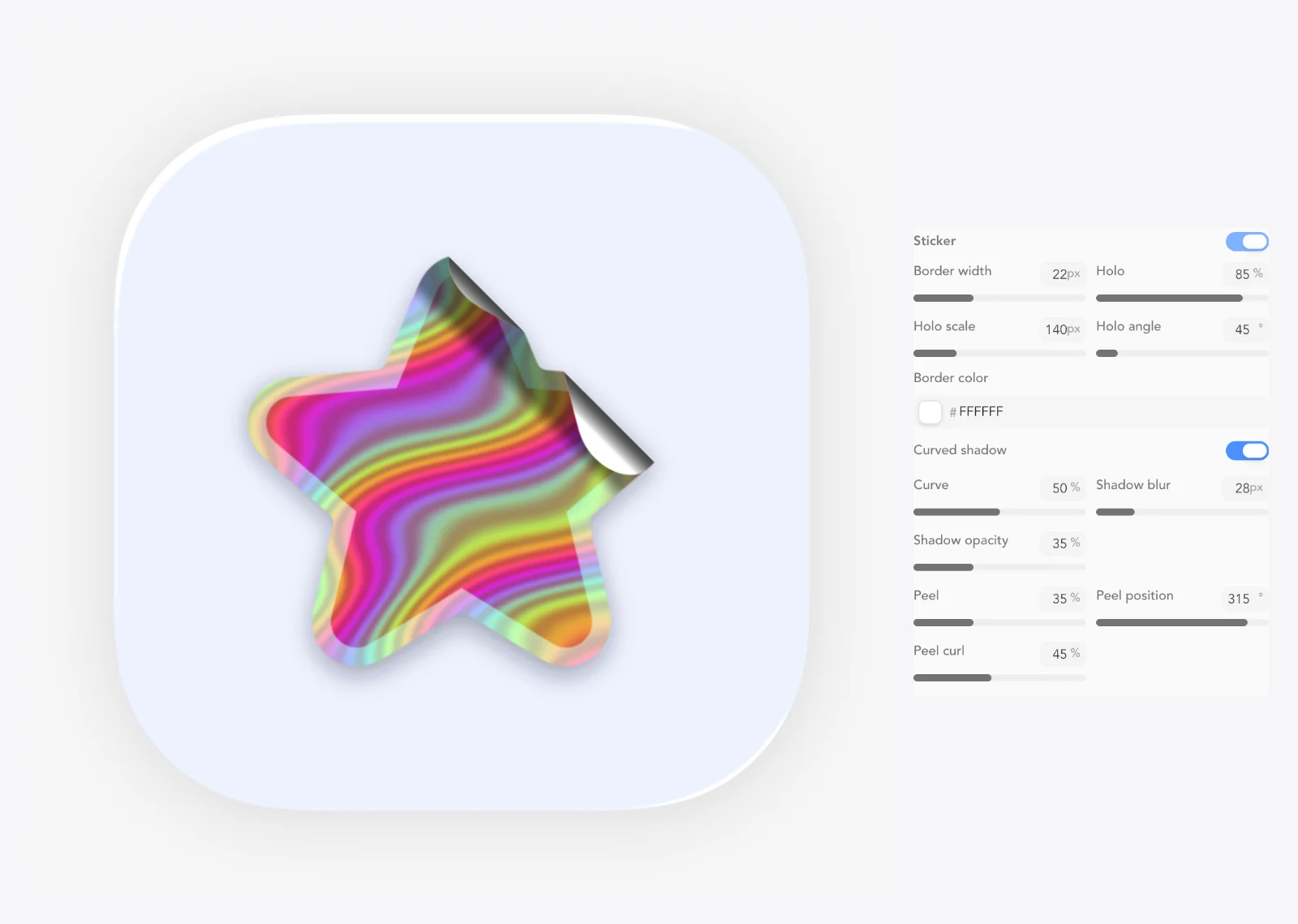
Turn a layer into a sticker: white (or any) border width/color, holographic foil with holo angle/scale, curved drop shadow (blur/opacity) and a peel effect (angle/curl).
Steps
Select a layer → Effects → Sticker.
Set border width and color.
Add Holo (with angle/scale), Curved shadow and Peel (angle/curl) to taste.
Questions
How do I make my icon look like a die-cut sticker?
Effects → Sticker: add a border, then layer on the holo foil, curved shadow and peel effects.
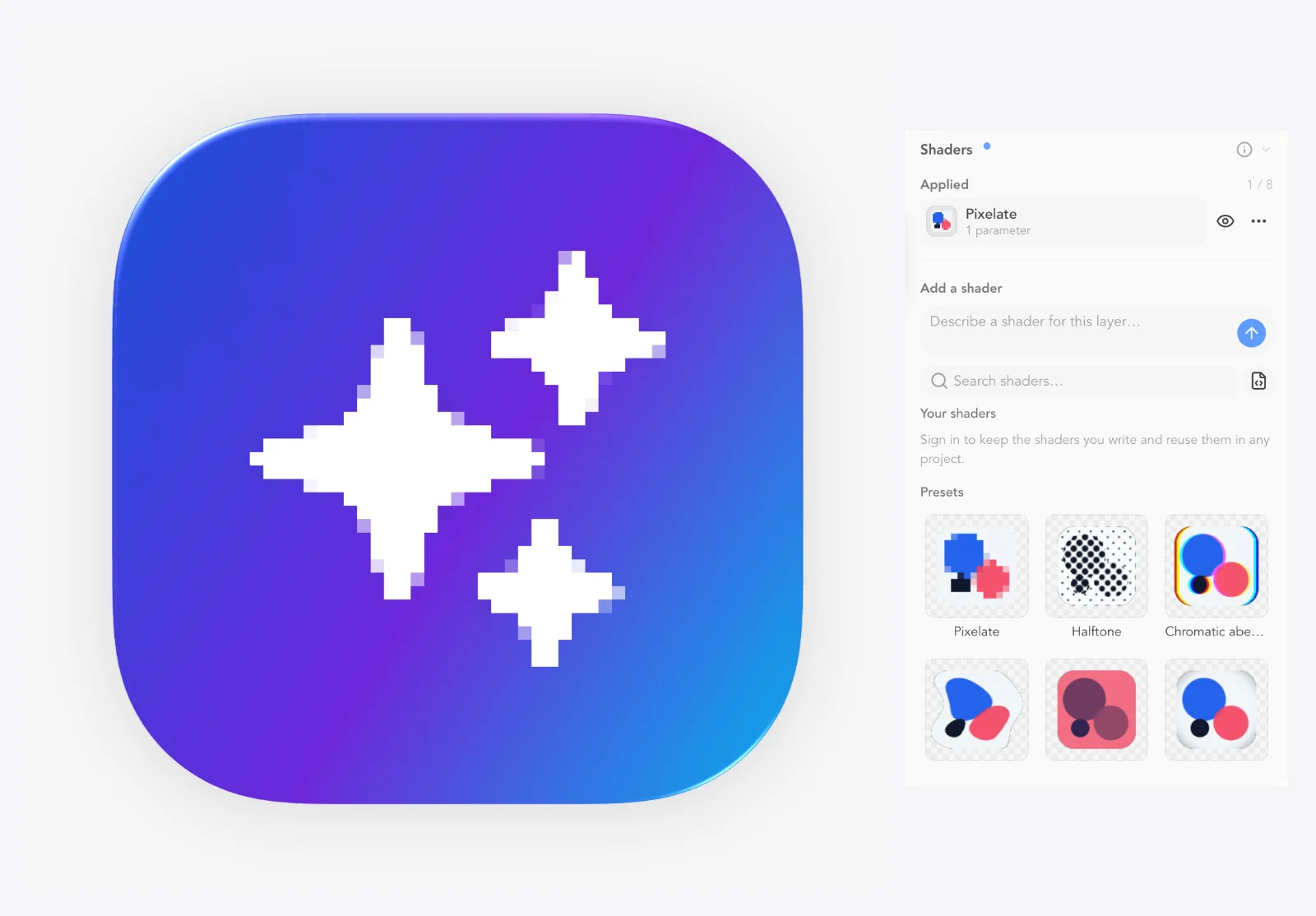
Stack custom GLSL ES 3.00 fragment shader passes on a layer, the background or the whole canvas. Parameters auto-wire to uniforms (float sliders, color pickers); a Shader Library of presets (halftone, pixelate, chromatic aberration, wave, duotone, CRT…), a code modal to view/edit GLSL, and 'Generate with AI' to author new shaders. Backdrop-aware via uBackdrop.
Steps
Open the Shaders section (per layer, or canvas/background level).
Add passes from the Shader Library, or write GLSL in the Code modal.
Expose parameters as uniforms to get sliders and color pickers automatically.
Use 'Generate with AI' to describe an effect and get a shader.
Tips
uBackdrop gives shaders access to what's behind the layer.
Shaders stack, so order matters.
Questions
Can I write my own shaders?
Yes. The Shaders section takes GLSL ES 3.00 fragment passes. Uniforms you expose become sliders/color pickers. A library of presets (halftone, pixelate, CRT, duotone…) is included.
How do I add a halftone or CRT effect?
Open the Shader Library and pick halftone or CRT. They drop in as editable passes with sliders.
Text layers with fonts, spacing and in-place editing.
Text layers
Type that stays editable.
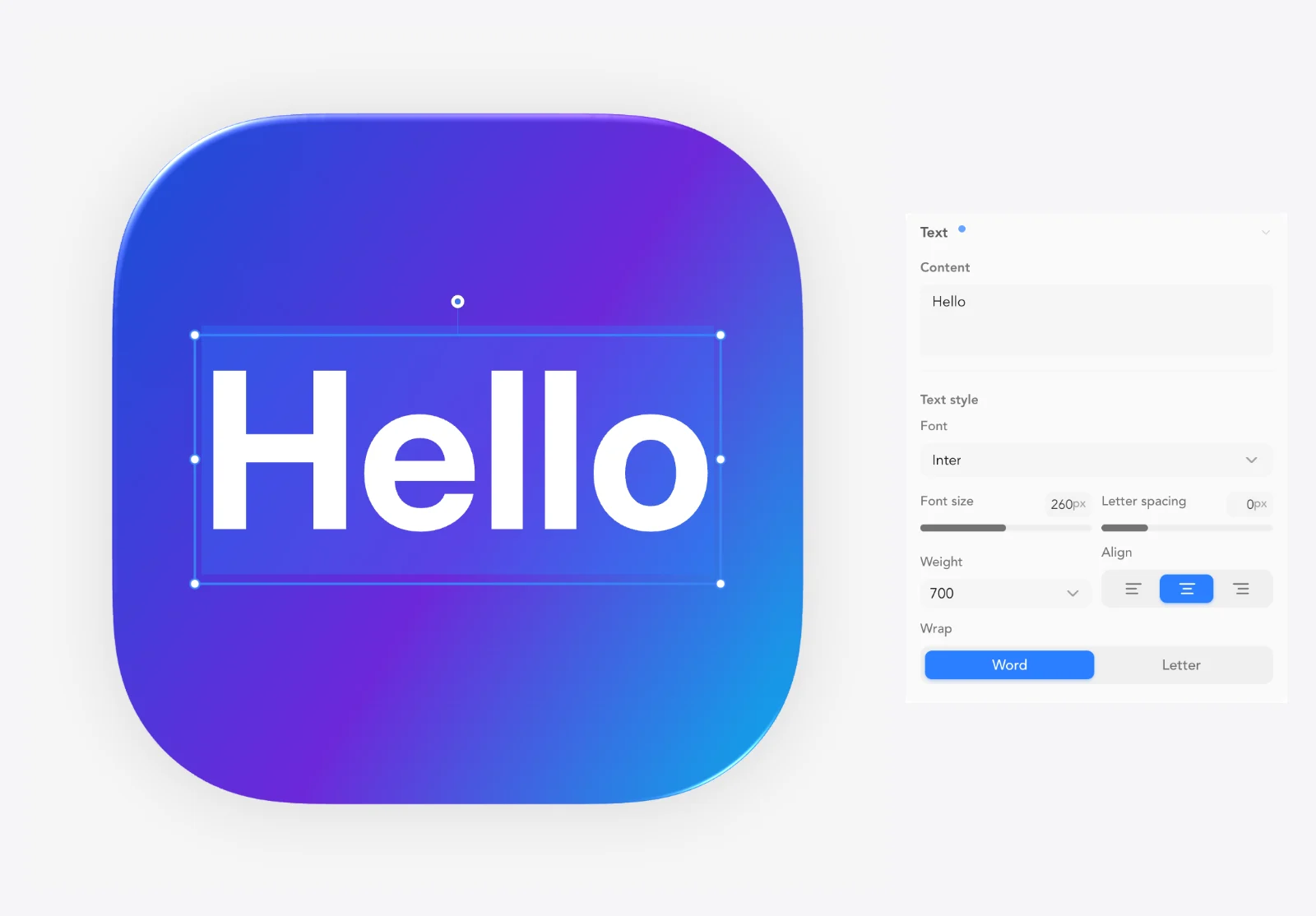
Text layers with Google Fonts, size 8-512, weight 100-900, letter spacing, line height, alignment, Figma-style text box width with word/char wrap, fill color and stroke color/width. Double-click to edit in place.
TAdd a text layer
EnterEdit selected text layer in place
Steps
Add a Text layer from the toolbar.
Double-click it on canvas (or press Enter) to type.
Set font (Google Fonts picker), size, weight, spacing and alignment in the Text section.
Set a text box width to wrap; choose word or character wrapping.
Tips
Google Fonts loads on demand so you can browse the full library.
Questions
How do I add text to my icon?
Add a Text layer, then double-click it on the canvas to type. The Text section has font, size, weight, spacing, alignment and wrapping.
How do I wrap text onto multiple lines?
Set a Text box width in the Text section and choose word or character wrap.
How do I edit individual letter shapes?
Convert the text to a path first (Convert to Path) so the letters become editable outlines.
Drop SVG or PNG images, .icns icon files, or an Icon Composer .icon bundle (which opens as a whole editable document) directly onto the canvas.
Steps
Drag a file over the canvas and release.
PNG/SVG become layers; .icns unpacks into artwork.
An Icon Composer .icon opens as a full document with layers.
Tips
You can also paste SVG from the clipboard.
Questions
What files can I drop into the editor?
SVG, PNG, .icns and Icon Composer .icon bundles. Images become layers; .icon bundles open as a full editable document.
Can I open an Apple Icon Composer file?
Yes, drop the .icon bundle on the canvas. It imports the layers and warns about Clear overrides, loose layers, missing assets and nested groups it can't map 1:1.
Three masking tools: Edit mask (paint/erase a layer's alpha on canvas), Use as Mask (a non-destructive geometry mask from another layer) and Filter mask (a mask that applies to effects only, with invert).
EnterToggle mask editing on an image layer
Steps
Edit mask: select an image layer and enter mask editing; paint/erase alpha; Done to finish (or Enter).
Use as Mask: right-click a layer → Use as Mask to clip another layer by its geometry; Clear Mask to remove.
Filter mask: assign a filter mask source so effects only apply inside (or outside, with invert) it.
Tips
Filter masks are perfect for glows that should only appear behind an object.
Questions
How do I erase part of an image layer?
Enter mask editing on the layer (press Enter on it) and paint/erase the alpha. 'Edit mask' / 'Done editing mask' toggles the mode.
How do I make one shape clip another?
Right-click the clipping shape → 'Use as Mask'. It becomes a non-destructive geometry mask; 'Clear Mask' removes it.
How do I apply an effect to only part of a layer?
Use a Filter mask. Effects only render where the mask allows. Invert flips it.
Remove an image's background four ways: Auto, Colour key (pixel-exact flood-from-border with pick-colour, detect and purity), AI cutout (segmentation), Multiply (for white) and Screen (for black), all with purity control.
Steps
Select an image layer (or use the toolbar's scissors action).
Choose a technique: Auto, Colour key, AI cutout, Multiply or Screen.
For Colour key: pick the colour and adjust Purity; Detect finds it for you.
Multiply knocks out white backgrounds; Screen knocks out black.
Tips
Colour key is pixel-exact, great for logos on solid backgrounds.
Questions
How do I remove the background from a logo PNG?
Select the image and hit Remove Background. Use Colour key for flat colors (pick the color, adjust Purity), AI cutout for photos, Multiply for white, Screen for black.
Which background remover should I use?
Flat color backgrounds → Colour key. White → Multiply. Black → Screen. Busy photos → AI cutout. Auto tries the best fit.
Trace a bitmap into a new SVG layer with a live preview, using presets (Default, Black & white, Poster, Photo) and curve modes (Default, Pixel, Polygon, Spline). Small images get a clean-up pass before tracing, so low-resolution logos trace cleanly.
Steps
Select an image layer.
Choose Vectorize and pick a preset (Default / Black & white / Poster / Photo); the preview updates as you go.
A new SVG layer is created. Edit its points like any path.
Tips
Use the 'Black & white' preset + Polygon curve mode for crisp logo traces.
Questions
How do I turn a PNG into a vector?
Select the image and use Vectorize. 'Black & white' is great for logos, 'Poster' for flat art, 'Photo' for detailed images. The result is an editable SVG layer.
Export formats, platform kits, project files and submissions.
Export formats (.icns, .png, .icon, .json)
Account required
Every format a Mac developer needs.
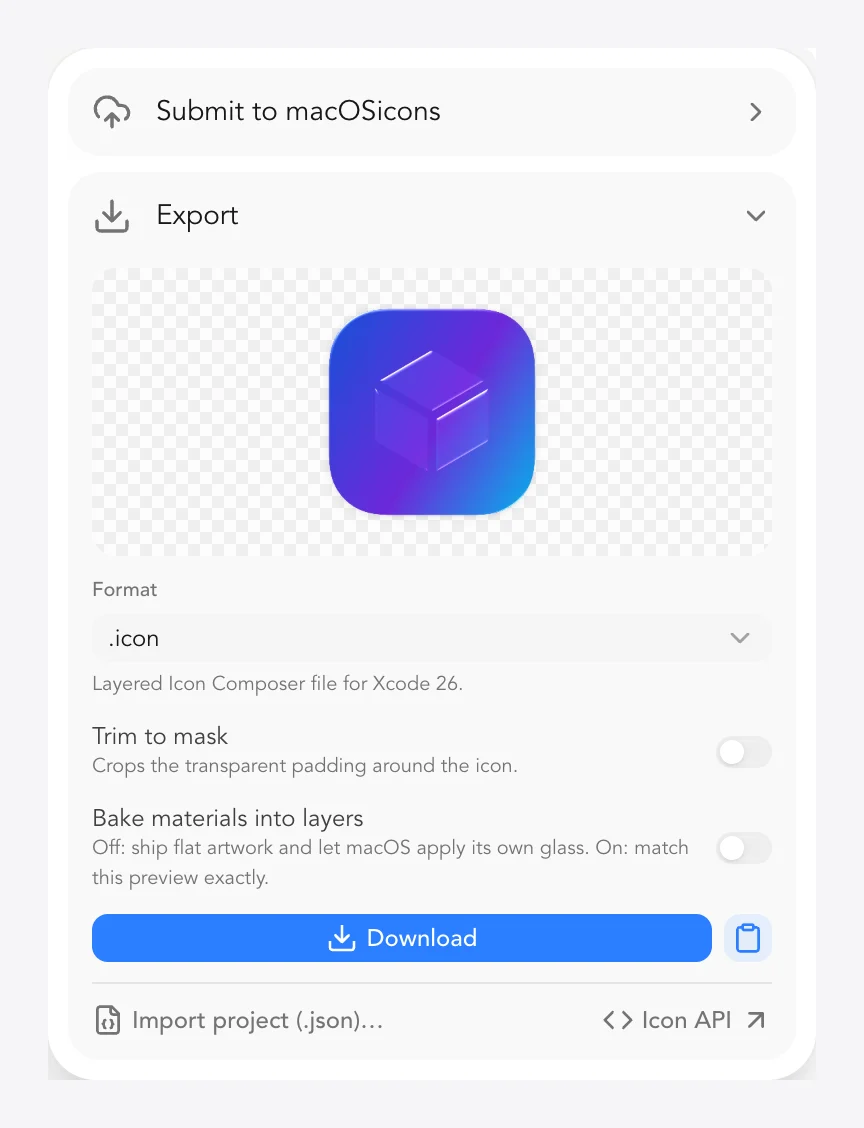
Export as .icns (full 16-1024 size ladder), .png (any size), .icon (Icon Composer bundle) or .json (project file), with live preview, trim-to-mask, size/scale control in x / px / % (16-4096px), download or copy to clipboard, and a 'bake materials' toggle for .icon bundles.
Steps
Open the Export popover.
Choose .icns, .png, .icon or .json.
For PNG set the size/scale (x / px / %, 16-4096px); enable Trim to mask to crop transparent padding.
For .icon, choose Bake materials (on = matches editor render, off = flat artwork so macOS applies its own glass).
Download, or Copy to clipboard for the PNG.
Tips
Copy to clipboard is the fastest way to drop a PNG into Slack or a doc.
Save a .json project so you can re-edit later.
Questions
How do I export an .icns file?
Export → .icns. It builds the full 16-1024 size ladder automatically. No Mac or iconutil needed.
How do I export just one PNG size?
Export → PNG and set the size in x, px or % (16-4096px). Trim to mask crops transparent padding.
What is 'bake materials' on .icon export?
On: materials are rendered into the artwork so it matches the editor exactly. Off: flat artwork is exported and macOS applies its own liquid glass at runtime.
Can I export transparent PNGs?
Yes, PNG export preserves transparency. Use Trim to mask to remove empty padding around the icon.
Server-side conversions via api.macosicons.com: .ico (Windows multi-size), .appiconset (Xcode asset catalog for macOS/iOS/Universal), Windows kit (.ico + MSIX tiles, zipped), Linux kit (hicolor icon theme + .desktop, zipped), Favicons (web favicon pack) and a Release kit with every artifact in one zip.
Steps
Open Export → More Formats.
Choose .ico, .appiconset, Windows kit, Linux kit, Favicons or Release kit.
For .appiconset pick the platform (macOS / iOS / Universal).
Download the converted file or zip.
Tips
The Release kit is the 'give me everything' button for a launch.
Questions
Can I get a Windows .ico from my icon?
Yes. More Formats → .ico produces a multi-size Windows icon. The Windows kit adds MSIX tiles as a zip.
How do I get an Xcode appiconset?
More Formats → .appiconset and choose macOS, iOS or Universal. It generates the full asset catalog.
Do you have favicons?
Yes. More Formats → Favicons downloads a web favicon pack zip. The Linux kit covers hicolor themes and .desktop files.
What's the fastest way to ship everywhere?
The Release kit: one zip with .icns, .ico, .appiconset, favicons and everything else.
Open Apple Icon Composer .icon bundles as editable documents (with warnings for Clear overrides, loose layers, missing assets and nested groups) and export back to .icon, including per-appearance Default/Dark/Clear/Tinted renders.
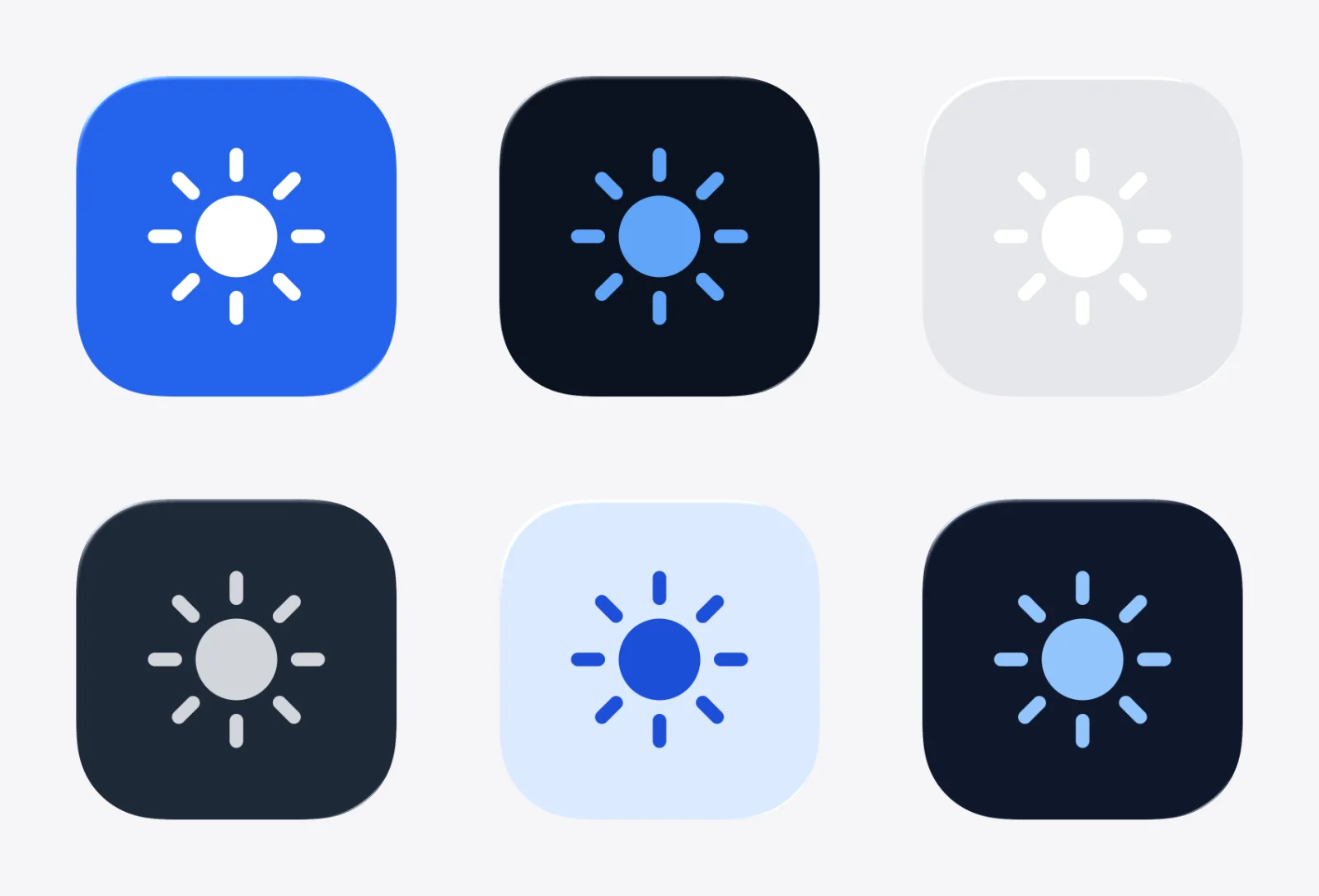
Preview and author per-appearance looks (Default, Dark, Clear-Light, Clear-Dark, Tinted-Light, Tinted-Dark) with per-layer overrides for color, tint, specular, frost, opacity, blend, visibility and even swapped artwork.
Steps
Switch appearance in the preview/export appearance switcher.
Select a layer and set per-appearance overrides (edit scope: individual or all).
Export all appearance modes as PNGs in one ZIP.
Tips
Set edit scope to 'individual' when only one appearance should change.
Questions
How do I make a dark-mode version of my icon?
Switch to the Dark appearance and adjust layers with per-appearance overrides: color, tint, opacity, visibility, even a different image. Export all appearance modes to get every render as PNG.
What are Clear and Tinted appearances?
Clear is the translucent Icon Composer look (light/dark); Tinted monochrome-adapts the icon to the user's accent color (light/dark). Each can be authored separately per layer.
Submit your icon to the public macOSicons library with app name, category and author confirmation, optionally bundling dark-theme/Liquid Glass .icns variants and the project .json. Submissions are reviewed before publishing.
Steps
Open Export → Upload.
Enter the app name and category; confirm authorship.
Optionally attach .icns variants and the project .json.
Submit for review.
Questions
How do I share my icon on macOSicons.com?
Export → Upload → Submit to macOSicons. Add the app name and category, confirm you're the author, and it goes through review before publishing.
Size, Dock, Home Screen and in-context preview renders.
Preview Tray (Sizes, Dock, Home Screen)
See it where it will live.
A floating preview tray with three tabs: Sizes (the icon at real system pixel sizes), Dock (a macOS desktop with a Liquid Glass dock, sample apps, running indicator and dock name) and Home Screen (an iOS grid with dock).
Steps
Open the Preview Tray from the toolbar.
Sizes: check legibility at real pixel sizes.
Dock: see the icon among sample apps in a live dock.
Home Screen: preview on an iOS grid and dock.
Tips
Design at 1024 but always sanity-check in Sizes before exporting.
Questions
How do I see my icon in the macOS dock?
Open the Preview Tray → Dock tab. It renders your icon in a Liquid Glass dock next to sample apps, complete with running indicator and label.
Will my icon be readable at small sizes?
Use the Sizes tab. It shows the icon at real system pixel sizes so you catch detail that disappears when scaled down.
Full-context preview renders with Light / Dark / Both themes, wallpaper color swatches or custom color/image, Auto/Blur/Gradient/Image backdrops. Download each render, download all, or save to your Assets library.
Steps
Open Preview in context.
Choose a context: Dock, Home Screen or Desktop.
Pick theme (Light / Dark / Both) and a wallpaper or backdrop.
Download each render, Download All, or Save to Assets.
Tips
Saved renders show up in the workspace Assets tab with their variant and project.
Questions
Can I get a mockup image of my icon in the dock?
Yes. Preview in context renders your icon in Dock, Home Screen or Desktop scenes with light/dark themes and customizable wallpapers. Download the renders or save them to Assets.
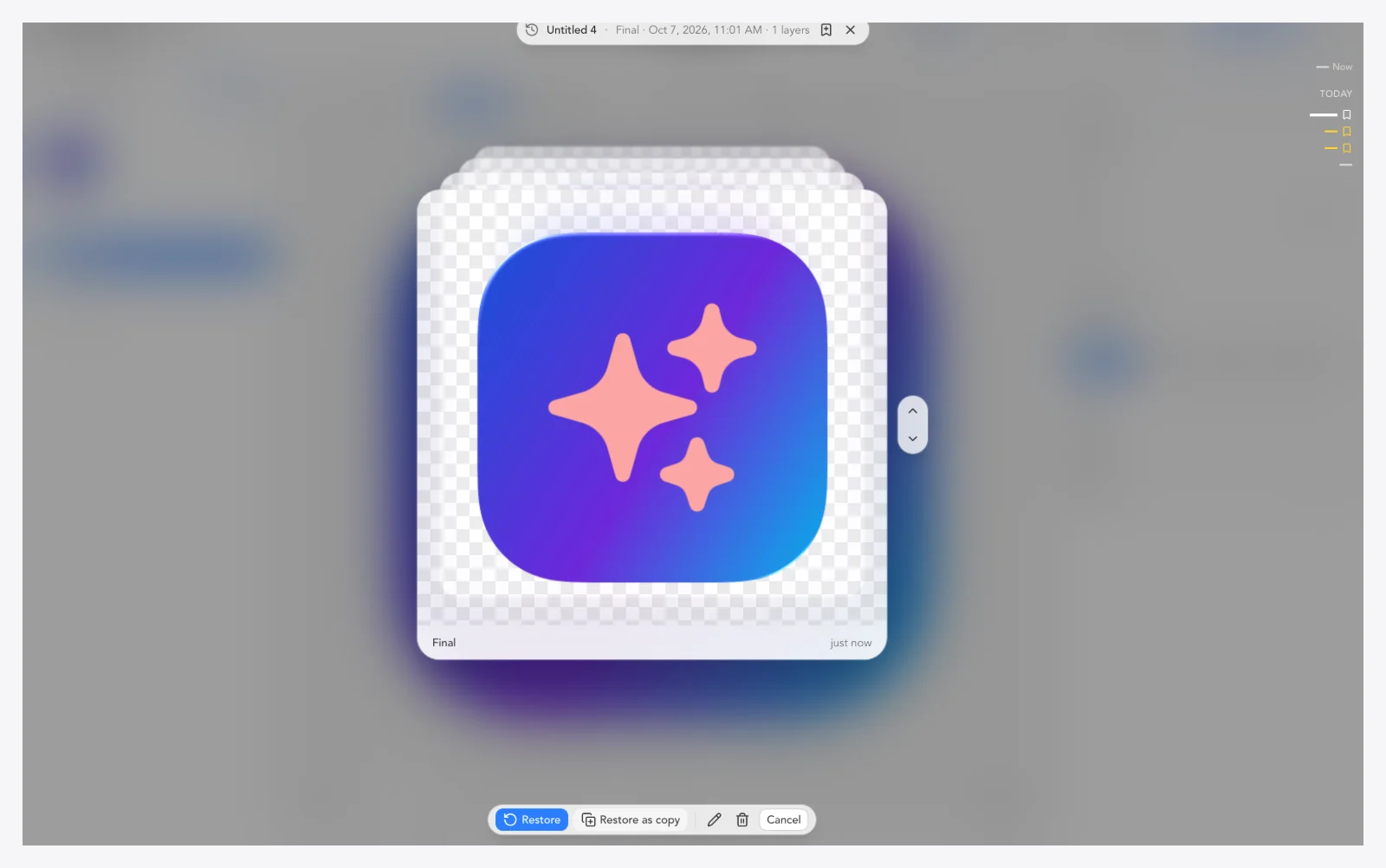
Named versions (Cmd+Option+S) plus automatic snapshots while you edit. Scrub a timeline ('Scroll or press ↑ to go back in time'), then Restore, Restore as copy, or delete a version. Includes restore points taken before restores, and handles cloud/local conflicts by keeping a safety copy. A macOSicons+ feature.
Cmd + Option + HOpen version history
Cmd + Option + SSave named version
Steps
Press Cmd+Option+H to open version history.
Press Cmd+Option+S (or the Save button) to save a named version.
Scrub the timeline (scroll or ↑/↓) to preview older states.
Restore, or 'Restore as copy' to branch without losing current work.
Tips
Name a version before big experiments. Restore as copy is the ultimate safety net.
Questions
Can I go back to an earlier version of my icon?
Yes. Version history (Cmd+Option+H) keeps automatic snapshots plus versions you name (Cmd+Option+S). Scrub the timeline and Restore, or Restore as copy to branch. It's a macOSicons+ feature.
What happens when two versions conflict?
The editor keeps a safety copy in version history and tells you which version it kept ('Kept this browser's newer version' / 'Opened the newer version from the cloud'). Offline conflicts can be restored as a copy.
Split an image into named, editable layers ('one layer per line…'), then add each piece or all of them to the canvas, reverse-engineering flat art into a real document.
Steps
Open Decompose Image with AI and choose an image.
Wait for the split into named layers.
Add individual layers or Add all to the canvas.
Questions
I have a flat PNG. How do I edit its parts?
Use Decompose Image with AI. It splits the image into named layers you can add individually or all at once, then edit like any other layers.
A credit meter shows exactly what an AI action costs before it runs ('Generating icons', 'Decomposing this image'). If credits run short, inline billing offers make topping up instant.
Steps
Watch the cost label before each AI action.
Run the action. Credits deduct on completion.
If short on credits, pick a top-up offer in the modal.
Questions
How much does AI cost?
Every action shows its credit cost before you run it. If you're short, the editor offers credit packs right in the flow, so no surprise bills.
Share links, live co-editing and the community gallery.
Share links (view or edit)
Account required
Send a link, not a file.
Create share links with view or edit access, copy them instantly, and reset links to revoke. Viewers see a 'View only · shared by X' banner with 'Duplicate to my workspace'; editors get 'Editing together · X's document'.
Steps
Open the Share modal.
Create a link and choose view or edit access.
Copy the link and send it. Use Reset links to revoke access.
Recipients can duplicate the document into their own workspace.
Tips
Reset links before making a doc public after private collaboration.
Questions
How do I share my icon design with someone?
Use Share to create a link with view or edit access. Reset links anytime to revoke. Recipients can duplicate it into their own workspace.
Can people I share with edit my document?
Only if you pick 'edit' access. View links are read-only and show a 'View only' banner.
Community gallery (browse, like, comment, duplicate)
Learn from every icon ever shared.
A gallery of shared icon projects at /editor/docs/community. Browse posts, like and comment, and duplicate any project into your workspace to see exactly how it was built.
Steps
Open Community from the projects area.
Browse and open projects; like and comment.
Click 'Copy to my projects' to duplicate one and study its layers.
Tips
Duplicating a community project is the fastest way to learn advanced material setups.
Questions
Can I see how other people made their icons?
Yes, the community gallery has shared projects. Open any of them and hit 'Copy to my projects' to get the full editable document.
Projects manager, trash, assets library and offline sync.
Projects manager (documents & folders)
Account required
Every icon project, organized.
A workspace with Projects (documents and nested folders), search, rename, and New Document presets for macOS app icon / iOS app icon / Folder icon. Plus Trash with restore and permanent delete. Free accounts hold up to 5 documents (trashed ones don't count) in 1 project; macOSicons+ removes both limits.
Steps
Open the projects area (/editor/docs).
Create documents (macOS / iOS / Folder icon) and folders.
Search, rename and nest to organize.
Deleted items go to Trash, where you can restore or permanently delete them.
Tips
Folders nest, so you can group by client or app.
Questions
How do I organize my icon projects?
The projects manager has folders, search and rename. Deleted items go to Trash where you can restore or permanently remove them.
How many documents can I have for free?
A free account holds up to 5 documents in 1 project, and documents in the Trash don't count. macOSicons+ gives you unlimited documents and projects.
Every generated or exported asset is stored automatically, grouped by variant with its credit cost and source project. Grid/list views, previews and re-download: the safety net for 'where did that file go?'.
Steps
Open the workspace → Assets tab.
Browse by variant; switch grid/list view.
Preview and download any asset again.
Tips
Renders saved from Preview in context are stored here too.
Questions
Where do my exported icons go?
Every icon you generate or export lands in the workspace Assets tab, grouped by variant with its project and credit cost. Re-download anytime.
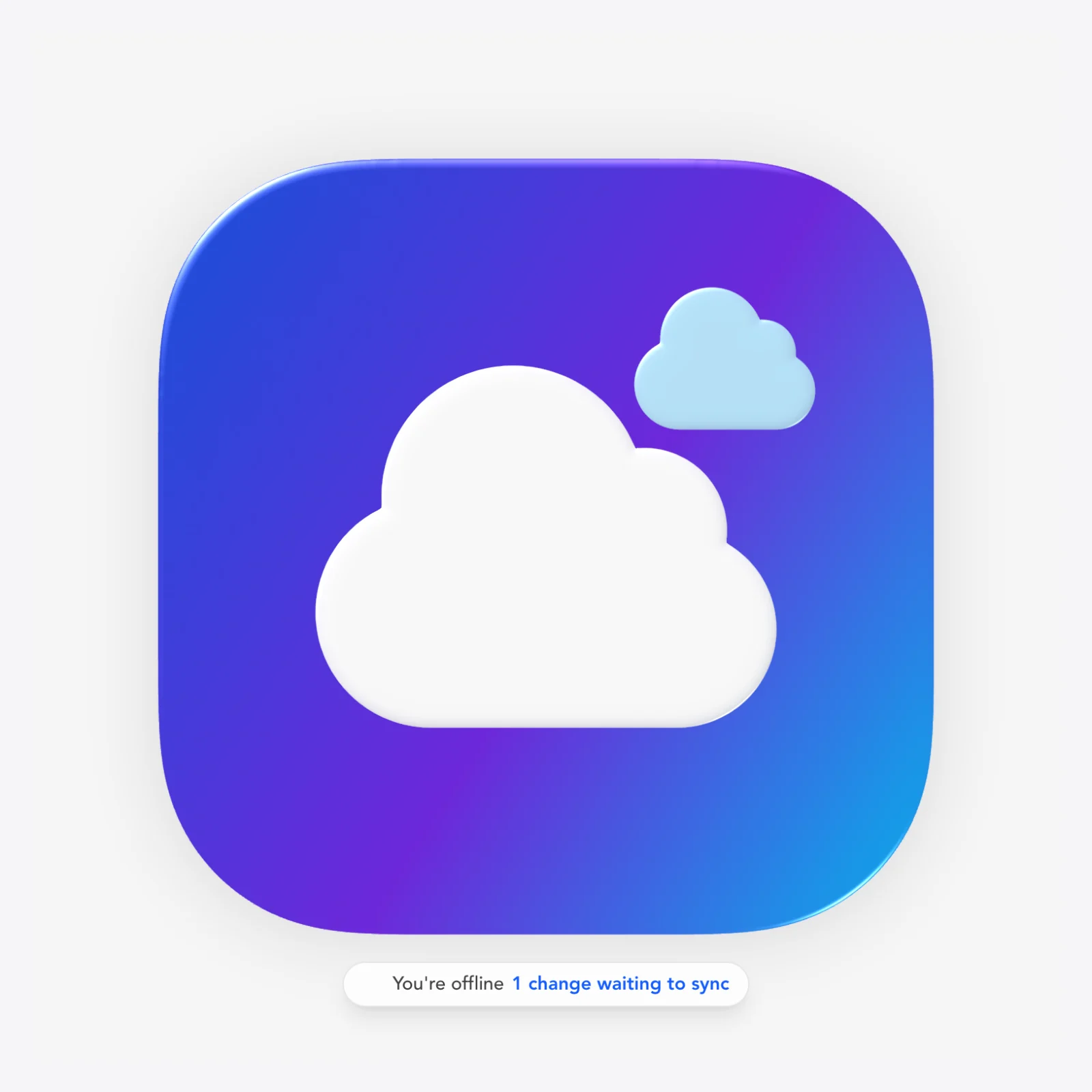
Make documents or whole projects available offline with a storage budget picker and usage meter, sync manually, retry failures and rebuild from server if needed. An offline banner and pending-change counter keep you informed; guest scratch docs work entirely in-browser.
Steps
Open the workspace → Offline tab.
Mark documents/projects 'available offline' (or 'Keep everything offline').
Set a storage budget and watch the usage meter.
Use Sync now when back online; retry failures or rebuild from server.
Tips
Guest mode is fully local: nothing is saved to the cloud until you sign up.
Questions
Does the editor work offline?
Yes. Mark documents available offline (with a storage budget), keep editing without a connection, and sync when you're back. The editor shows 'N changes waiting to sync' and can retry or rebuild from the server if anything fails.
Anyone can open the editor and design immediately as a guest, in a scratch document in the browser with full tools. Exports and cloud saves prompt a free sign-up.
Steps
Open /editor and start designing. No signup wall.
Work in the guest scratch document (stored in the browser).
Sign up free when you want to export or save to the cloud.
Questions
Do I need an account to use the editor?
No, design freely as a guest. You need a free account to export (.icns, PNG, .icon) and to save projects to the cloud.
A skippable 6-step guided tour: Welcome → Build on the canvas → Draw with shapes and the pen → Combine shapes → Layers & properties → Export & save. Skip it, jump to any step, or reopen it any time from Help → Take the tour.
Steps
The tour opens on first visit; reopen it from Help → Take the tour.
Follow the six steps or click Go to step N.
Skip Tour to dismiss it at any time.
Questions
Is there a tutorial for the editor?
Yes, a 6-step tour covers the canvas, drawing with shapes and the pen, combining shapes, layers & properties and export & save. Skip it, or reopen it any time from the Help menu.
Press Cmd + K to search every editor action by name or by what you want to do ("cut a hole", "round corners", "array") and run it, with its shortcut shown alongside. Press ? for a searchable sheet of every keyboard shortcut, grouped by tool. Both are also in the Help menu.
Cmd + KOpen the command palette
?Show keyboard shortcuts
Cmd + /Show keyboard shortcuts
Steps
Press Cmd + K (Ctrl + K on Windows and Linux) or choose Help → Command palette.
Type what you want to do and press Enter to run the highlighted command.
Press ? or Cmd + / for the keyboard shortcuts sheet.
Tips
The hint bar at the bottom of the canvas explains the active tool's clicks and keys; turn it back on from the Help menu. Hiding it hides only the explanation: the Pencil's Smoothing, the path the Pen adds to and the touch Finish / Done buttons stay.
Questions
How do I find a tool or command I can't see?
Press Cmd + K and type what you want to do, such as "hole", "flip" or "bring to front". Commands that don't apply to the current selection say why.
Zoom with Cmd +/- / Cmd+0 to reset, pan by holding Space and dragging, two-finger trackpad pan, and a canvas context menu with Zoom In/Out/Reset Zoom/Paste.
Cmd + / Cmd -Zoom in / out
Cmd + 0Reset zoom
Space (hold) + dragPan canvas
Steps
Cmd + / Cmd - to zoom; Cmd+0 to reset.
Hold Space and drag to pan (or two-finger scroll on a trackpad).
Right-click the canvas for zoom actions and Paste.
Questions
How do I pan around the canvas?
Hold Space and drag, or two-finger pan on a trackpad. Cmd +/- zooms and Cmd+0 resets the zoom.
A keyboard-first eyedropper (C, or Ctrl+C on macOS / Alt+C elsewhere) that samples a color and routes it to the right channel (fill, stroke or background) depending on your selection.
C (Ctrl+C on macOS / Alt+C elsewhere)Open color picker / eyedropper
Steps
Press C (or Ctrl+C / Alt+C) to open the eyedropper.
Click any pixel to sample it.
The color lands in fill, stroke or background depending on context.
Questions
How do I pick a color from my artwork?
Press C to open the eyedropper and click the pixel. It writes to fill, stroke or the background depending on what's selected.
A responsive layout with bottom tabs (Inspector / Layers / Projects), a mobile selection bar (Done / '{n} layers') and a 'More Tools' menu, with haptic feedback on supported devices.
Steps
Open the editor on a phone or tablet.
Switch bottom tabs between Inspector, Layers and Projects.
Use the More Tools menu for toolbar actions; haptics confirm key gestures.
Questions
Does the editor work on phones?
Yes. A mobile layout with bottom tabs (Inspector/Layers/Projects), a selection bar and a More Tools menu keeps the full editor usable on small screens.
Quality of life (auto naming, haptics, GPU-safe export)
The small things done right.
Documents auto-name themselves from their content, supported devices get haptic feedback on key gestures, and export capture is GPU-safe with a clear error toast that names the GPU if capture fails.
Steps
Let documents name themselves. Rename any time.
Feel haptics on supported touch devices.
If export capture fails on a rare GPU, the toast tells you which one.
Questions
How are my documents named?
Automatically from their content. Rename any document yourself whenever you want.
Standalone one-click tools and the public Icon API.
Icon Toolkit (standalone tools + public API)
Account required
The same tools as buttons and as an API.
The Icon Toolkit at /editor/toolkit exposes the editor's one-shot tools as standalone web tools (no Mac required), and every tool is also a public REST endpoint under /api/v1/editor/ for programmatic use.
Steps
Open /editor/toolkit.
Run any tool in the browser (icon mask, generate, convert, remove background…).
Or call the matching endpoint at /api/v1/editor/ from your own code.
Tips
Toolkit tools work without opening the full editor document.
Questions
Do I need a Mac to make an .icns?
No, the Toolkit converts and exports .icns (and every other format) right in the browser or via the API.
Is there an API for these tools?
Yes, every toolkit tool has a public endpoint under /api/v1/editor/. See the API docs on the toolkit page.
Drop up to 20 images and pick one or more output formats (PNG, JPEG, WebP, AVIF, GIF, TIFF, BMP, ICO or ICNS): every image comes back in every format you choose. It reads PNG, JPEG, WebP, AVIF, GIF, TIFF, BMP, ICO, ICNS, HEIC and SVG, and presets plus per-format controls tune the compression. Each output image counts as one conversion, and the same tool is the public /api/v1/images/convert endpoint.
Steps
Open /editor/toolkit and choose Convert images.
Drop up to 20 images (25 MB each, 100 MB per run).
Pick the output formats and, if you like, a preset and a quality.
Download each image, or all of them as a .zip.
Tips
Choose several output formats in one run: every image comes back in each of them.
Questions
How do I convert many images to WebP or AVIF at once?
Use Convert images in the Icon Toolkit: drop up to 20 images, pick WebP, AVIF or any other output, and download them all as a .zip.
Re-encodes up to 20 PNG, JPEG, WebP, AVIF, GIF or TIFF images in their own format with tighter compression, optional downscaling and metadata stripping. Presets, quality, lossless and a 256-color palette tune it, and if a file can't get any smaller you get the original back untouched. The same tool is the public /api/v1/images/compress endpoint.
Steps
Open /editor/toolkit and choose Compress images.
Drop up to 20 images.
Pick a preset, or set the quality, lossless, palette or a maximum size.
Download the smaller files, or all of them as a .zip.
Tips
Leave Keep metadata off to strip EXIF and other metadata as you compress.
Questions
Can I make my PNGs smaller without changing the format?
Yes. Compress images re-encodes them in their own format; the palette option often makes PNGs 60–80% smaller, and a file that can't shrink comes back unchanged.
how do I make my icon look like liquid glass / Apple glass
Set the layer's Material to Glass and raise Thickness and Curvature, then add a little Chroma and Frost and enable Opposite specular for the twin edge highlights. Turn on Document → Reflection for the whole-icon gloss.
how do I change the background color / make a mesh gradient background
Document settings → Background: pick Solid, Gradient or Blob (mesh). Blob mode lets you drag up to 12 color blobs on the canvas; 'Suggest colors from icon' derives matching colors from your artwork.
Switch to the Dark appearance and adjust layers with per-appearance overrides (color, tint, opacity, even swapped artwork). 'Export all appearance modes' gives you every render as PNGs in a ZIP.
Select the image and use Vectorize (Default / Black & white / Poster / Photo presets). The result is an editable SVG layer you can reshape point by point.
how do I edit the points / outline of a shape or text
Press Enter on the layer to enter Edit Path mode (convert text/SVG to a path first if needed). Shift-click edges to add points, Option-click to remove, Cmd+J to join.
Press N for the Pencil (it shares the Pen's toolbar slot) and draw. The stroke becomes a smooth path with few points when you lift; end near the start to close it. Adjust Smoothing in the bar above the canvas.
Effects → Shadows for stacked outer/inner shadows, Effects → Glow for bloom, and the Stroke section for inner/outer/center outlines (even gradient strokes).
Yes. Generate Icons makes up to 8 masked options from one prompt, and Decompose Image splits flat art into editable layers. Both add their results to your canvas as layers.
The Preview Tray has live Sizes, Dock and Home Screen tabs. Preview in context renders downloadable mockups (Dock / Home Screen / Desktop, light and dark). The Toolkit does mockups standalone.
Design free as a guest with no account, though exporting needs a free sign-up. Documents can be made available offline with local storage budgets and sync-when-back.
Cmd+Z undoes 50 steps. Version history (Cmd+Option+H, macOSicons+) keeps automatic snapshots and named versions (Cmd+Option+S) you can restore or restore-as-copy.
Share creates view or edit links (reset anytime). Live collaboration adds presence and cursors. Share to community publishes to the gallery, where anyone can duplicate your project to learn from it.
Export → Upload → Submit to macOSicons: add the app name and category, confirm authorship, optionally attach .icns variants and the project file. It goes through review before publishing.
The projects manager has nested folders, search, rename and Trash. Every export/generate lands in the Assets tab. Boards keep several icons side by side in one session.
Yes. Every Icon Toolkit tool is also a public endpoint under /api/v1/editor/ (mask, convert, appiconset, favicons, release kit and more). See the API docs on /editor/toolkit.
how do I make a grille / repeat a shape in a circle or a grid
Select the shape and choose Path → Repeat…. Radial copies it round a centre, Grid lays out rows (Honeycomb staggers them) and Concentric makes rings; set Result to 'Cut holes into' to perforate a body in one layer.
how do I find a command / what are the keyboard shortcuts
Press Cmd + K (Ctrl + K on Windows and Linux) and type what you want to do; the palette runs it and shows its shortcut. Press ? for the full keyboard shortcuts sheet. Both are in the Help menu.
how do I give several parts the same look / reuse a style
Select the parts, press I (Match style) and click the part that already looks right, or apply a finish from Styles in the inspector. Save a look there to reuse it in other documents, and use Cmd + Option + C / V to copy and paste one.
how do I import my Figma / Illustrator / Sketch icon as editable layers
Copy it as SVG (or export an .svg) and paste or drop it on the canvas. Each shape becomes its own path layer with its fills, gradients and strokes, groups become folders, and the toast lists anything that couldn't be imported. Choose 'Import as image instead' there to keep it as one picture.
Select the shape or path, turn its stroke on and set Dashes to Dashed or Dotted (or Custom to type dash and gap lengths in px, e.g. 8 4). Round caps turn 0-length dashes into dots; Dash offset slides the pattern.
how do I turn a stroke into a shape / offset, simplify or make a compound path
Select the layer and open the toolbar's Path operations menu (or Path in its context menu): Outline stroke (Cmd + Option + O), Offset path…, Simplify…, Smooth, Reverse direction and Make / Release compound path.
Open the Icon Toolkit: Convert images turns up to 20 images into any mix of PNG, JPEG, WebP, AVIF, GIF and more, and Compress images shrinks them in their own format. Download them one by one or as a .zip, or call /api/v1/images/convert and /api/v1/images/compress.