Materials & Lighting
Flat, Clay, Glass and Emboss materials, lighting and depth maps.
Materials (Flat, Clay, Glass, Emboss)
The materials macOS actually uses.
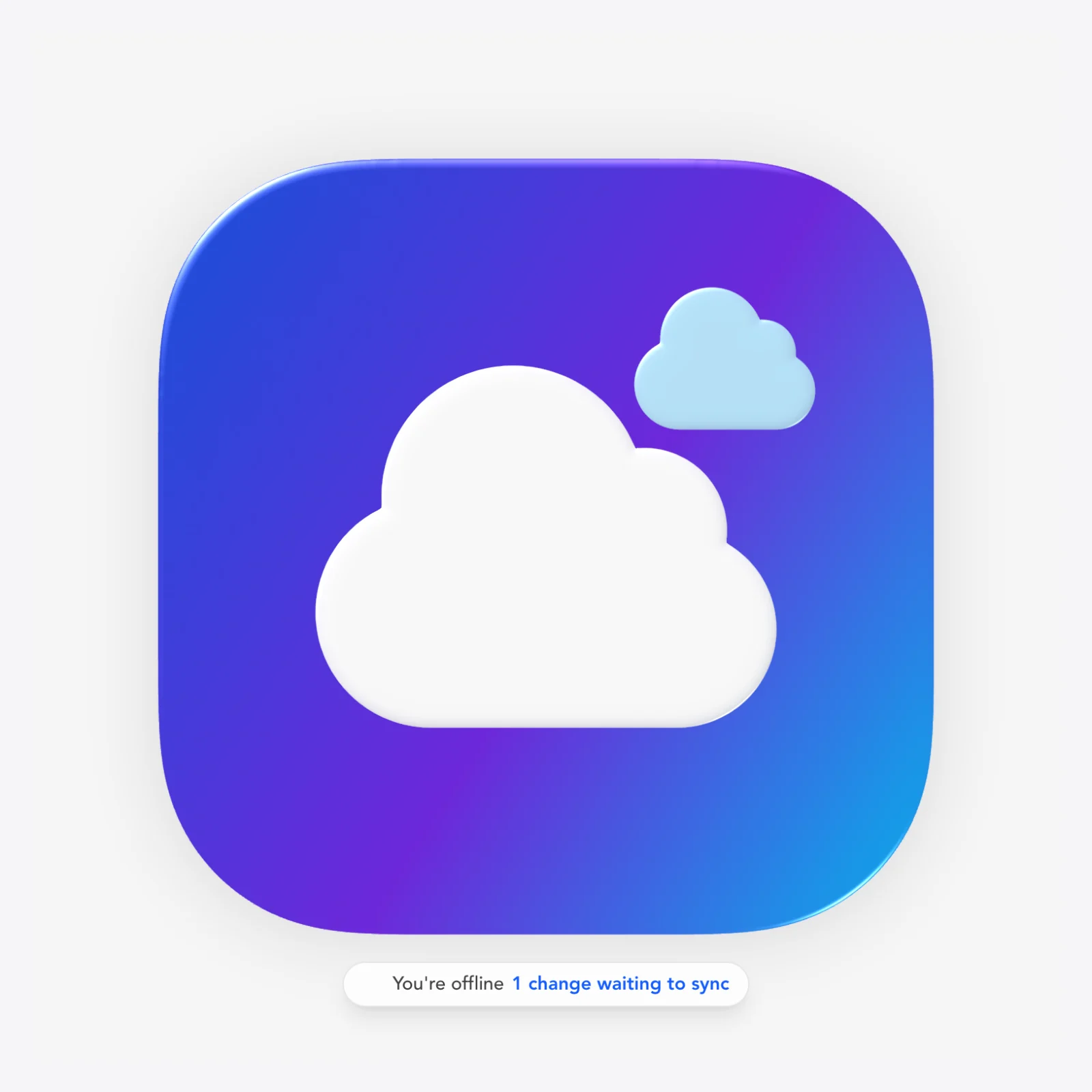
Every vector layer can be Flat, Clay (pillowy plasticine), Glass (refractive liquid glass) or Emboss (carved into the surface behind) — the signature look of the editor, rendered live with WebGL.
使用方法
操作步骤
- Select a shape, path, text or SVG layer.
- Open the Material section and pick Flat, Clay, Glass or Emboss.
- Tune the material's sliders (see the Glass/Clay/Emboss features).
小技巧
- Combine with Document → Reflection for a whole-icon gloss.
- Basic mode exposes Glassiness / Puffiness / Shadow macros.
常见问题
- How do I make a glassy or 3D-looking icon?
- Select your layer and set Material to Glass or Clay. Glass refracts what's behind it; Clay gives a pillowy plasticine look; Emboss carves the shape into the surface behind.
- Which materials can be combined?
- One material per layer (Flat, Clay, Glass and Emboss are mutually exclusive), but layers stack — put glass over clay layers. Use Group Liquid Glass to fuse several layers into one glass surface.
A refractive glass material with Bezel (10-140), Thickness (0-180), Curvature (-1..1), Chroma (chromatic aberration 0-18), Frost (0-32), Specular (0-1), Opposite specular with width (the twin edge reflections Apple uses), Tint color and tint strength, per-layer or canvas-linked light angle, and depth-map silhouette mode.
使用方法
操作步骤
- Set a layer's Material to Glass.
- Adjust Bezel, Thickness and Curvature for the body of the glass.
- Add Frost for milkiness and Chroma for color-fringing refraction.
- Enable Opposite specular + width for the twin highlight look.
- Use Tint color/strength for colored glass; link the light angle to the canvas light to keep layers consistent.
小技巧
- A depth map gives refraction a proper 3D silhouette.
- 'Material on Stroke' paints the material just on the outline.
常见问题
- How do I make a liquid glass icon?
- Set Material → Glass, raise Thickness and Curvature, add a little Chroma and Frost, and enable Opposite specular for the twin Apple edge highlights. Document → Reflection adds the global gloss.
- What does Chroma do in the glass material?
- Chroma is chromatic aberration — it splits colors at the glass edges for a refractive, prism-like fringe.
A soft 3D clay material with Bezel, Thickness, Curvature, Body refraction, Rim refraction, Specular (linkable), Softness, Opposite specular + width, Edge darkening + width, and per-layer or canvas-linked light angle.
使用方法
操作步骤
- Set a layer's Material to Clay.
- Adjust Bezel, Thickness and Curvature for the puffiness.
- Use Softness and Edge darkening to shape the shadowing.
- Set Body/Rim refraction for translucent clay looks.
小技巧
- Link the specular pair for a single highlight; unlink for dual-source lighting.
常见问题
- How do I make a clay / 3D puff icon?
- Material → Clay. Raise Thickness and lower Softness for a tighter plasticine puff; Edge darkening adds contact shading. Basic mode's 'Puffiness' slider does the same in one control.
An emboss/deboss material with Depth (0-1), Bevel (1-80px) and Softness (0-1) — the shape reads as pressed into the layer beneath it.
使用方法
操作步骤
- Set a layer's Material to Emboss.
- Adjust Depth for how carved it looks.
- Use Bevel width and Softness to control the edge shading.
常见问题
- How do I make a debossed/engraved icon?
- Material → Emboss. The shape appears carved into whatever is behind it; Depth and Bevel control the carve.
A global reflection light angle that all materials can follow, or per-layer glass/clay light angles for mixed lighting. 'Confine to mask' keeps highlights inside the icon silhouette.
使用方法
操作步骤
- Set the light angle in Document settings or the Material section.
- Toggle 'use canvas light' on a layer to follow the global angle, or give it its own.
- Enable 'Confine to mask' to clip highlights to the icon shape.
小技巧
- A 315° (top-left) light matches macOS icon lighting conventions.
常见问题
- How do I keep highlights consistent across layers?
- Turn on 'use canvas light' for each material layer so they all follow the document's global light angle.
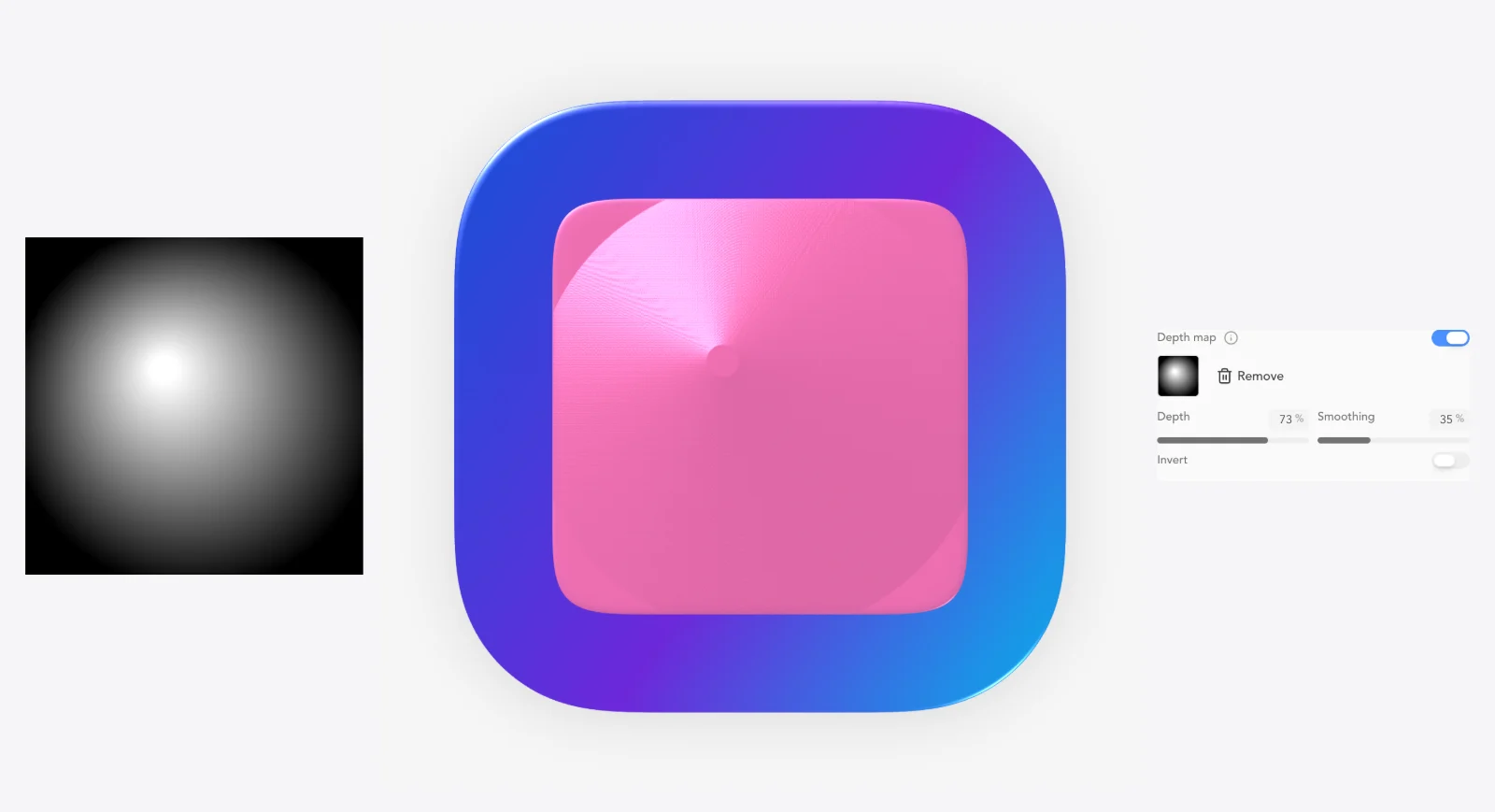
Generate a depth map for a glass layer's silhouette and tune Depth and Smooth — so refraction bends like a real 3D body instead of a flat lens.
使用方法
操作步骤
- Select a Glass material layer.
- Open Depth map and click Generate.
- Adjust Depth and Smooth to shape the thickness field.
常见问题
- My glass looks flat — how do I fix it?
- Generate a depth map for the glass layer (Material → Depth map). It gives the refraction a rounded 3D silhouette; Depth and Smooth control the effect.
A backdrop blur behind a layer's silhouette (0-5 multiplier) so whatever sits behind it frosts through — true glassmorphism, not a painted fake.
使用方法
操作步骤
- Select a shape layer.
- Set Background blur in the material/effects area.
- Place the layer over a colorful background to see the frost.
常见问题
- How do I make frosted glass that blurs the background?
- Raise Background blur on the layer — it blurs whatever is behind the silhouette (0-5), like macOS's frosted materials.
Basic-mode macro sliders (Glassiness, Puffiness, Shadow)
Three sliders, pro results.
Beginner-friendly macros that drive multiple material parameters at once — Glassiness, Puffiness and Shadow (0-100) — losslessly, so you can drop into advanced controls later with nothing lost.
使用方法
操作步骤
- Switch the inspector to Basic mode.
- Drag Glassiness, Puffiness or Shadow.
- Open Advanced at any time — every underlying value is intact.
常见问题
- I'm overwhelmed by material sliders — where do I start?
- Basic mode's three macros: Glassiness, Puffiness and Shadow. They set many parameters at once and are fully reversible.
One-click looks applied to the current selection: glossy3d, softClay, pillow, ceramic, liquidGlassLook, frostedGlass, crystal and chrome. Each preset writes full material setups you can keep tuning.
使用方法
操作步骤
- Select one or more layers.
- Open the style presets menu.
- Click a preset (e.g. frostedGlass) and keep refining the material sliders.
小技巧
- The AI assistant can apply presets too: 'Make it frosted glass'.
常见问题
- Is there a quick way to get a professional material look?
- Apply a style preset (glossy3d, softClay, pillow, ceramic, liquidGlassLook, frostedGlass, crystal, chrome) to the selection, then fine-tune.
Liquid Glass template layers
Named effect stacks, ready made.
Preset glass effect stacks as a layer type — liquidGlass, frostedMetal, deepShadow, sideGlow or custom — plus effect variants (topSpecular, innerShadow, rimLight, sideReflection, metalSheen) with intensity controls.
使用方法
操作步骤
- Add a Liquid Glass Template layer.
- Pick a template: liquidGlass, frostedMetal, deepShadow, sideGlow or custom.
- Toggle effect variants and set their intensities.
小技巧
- Start from a template and swap in your own artwork underneath.
常见问题
- What are Liquid Glass template layers?
- Pre-built glass effect stacks — liquidGlass, frostedMetal, deepShadow, sideGlow (or custom) — with toggles for top specular, inner shadow, rim light, side reflection and metal sheen.
Designed starting templates
Start from a designed icon, not a blank canvas.
Six designed document templates: glass-tile, clay-button, glass-on-clay, monogram, glass-disc and mono-clay — full editable setups, not flattened images.
使用方法
操作步骤
- Create a new document and choose a template.
- Swap the artwork/glyph for your own.
- Keep the materials as-is or retune them.
常见问题
- Do you have icon templates I can start from?
- Yes — glass-tile, clay-button, glass-on-clay, monogram, glass-disc and mono-clay. They're fully editable documents with materials already set up.