



macOSicons
by Elíascollections.drive_icons.h1
collections.drive_icons.lede
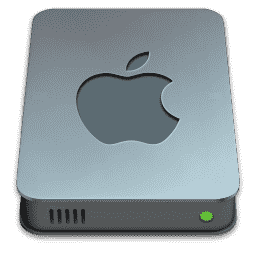 Drive - macOSenergygap
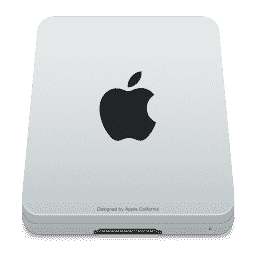 Drives 2021 Silber - Intern SSDRico
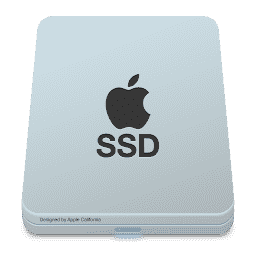 Drive Grey Intern SSDEmoopo-Design
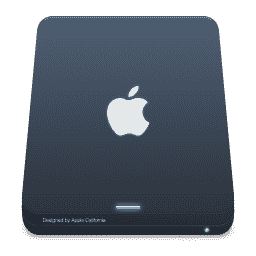 Drive 2024 Midnight - My External genericuser-AqHKrylJvD
 Drive USB External_1024x1024Rico
 Drive Grey MacOSEmoopo-Design
 Drive Grey SATAEmoopo-Design
 Drive 2024 Midnight - Internaluser-AqHKrylJvD
 Drive Grey ExternalEmoopo-Design
 Drive Blueyattaro
 Drive Extern Nvme SSD_1024x1024Rico
 Drives 2021 Silber - NVME SSDRico
 Drive M2_1024x1024Rico
 Drive Grey USBEmoopo-Design
 Drive Grey NVME SSDEmoopo-Design
 Drive - USBenergygap
 Drivezabriskije
 Drive - Windowsenergygap
 Drive Nvme SSD_1024x1024Rico
 Drive Sata SSD_1024x1024Rico
 Drive InternalRico
 Drive Grey TimeMachineEmoopo-Design
 Drive 2023 - USB 3.0user-AqHKrylJvD
 Drive - Time Machineenergygap
 Drives 2021 Silber - Time BackupRico
 Drive - Google Driveenergygap
 Drive Blue Time Machineyattaro
 Drive Grey Windows 2Emoopo-Design
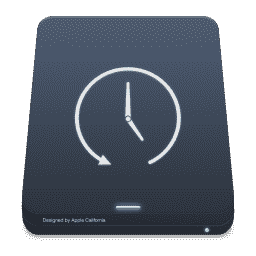 Drive 2024 Midnight - My Timemachineuser-AqHKrylJvD
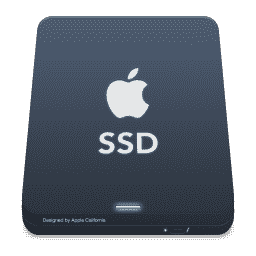 Drive 2024 Midnight - My Externaluser-AqHKrylJvD
 DriveDxOMGzilla
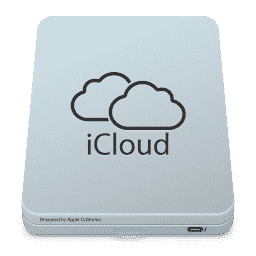 Drive Grey iCloudEmoopo-Design
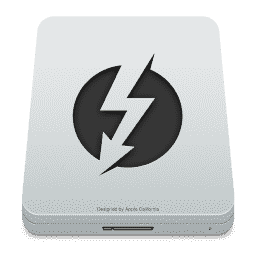 Drives 2021 Silber - ThunderboltRico
 Drive iconcutter
 Drive - Dropboxenergygap
 Drives 2021 Silber usbRico
 Drive - Linuxenergygap
 Drive Grey GoogleEmoopo-Design
 Drives 2021 Silber - WindowsRico
 Drive 2024 Midnight - My iClouduser-AqHKrylJvD
 Drive Grey ThunderboltEmoopo-Design
 Drive 2023 - Apple M1user-AqHKrylJvD
 Drive Grey Micro SDEmoopo-Design
 Drive 2023 - Apple M2user-AqHKrylJvD
 Drive - OneDriveenergygap
 Drive 2024 Midnight - My Serveruser-AqHKrylJvD
 Drive-macOS-Dark-1024x1024@1xstevenumber1
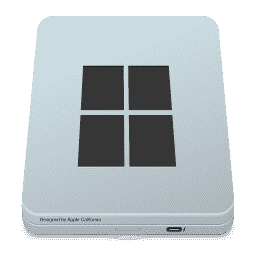 Drive Grey Windows 1Emoopo-Design
 Drives 2021 Silber - RaidRico
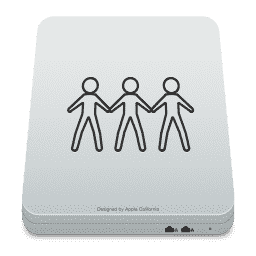 Drives 2021 Silber - Server 1Rico
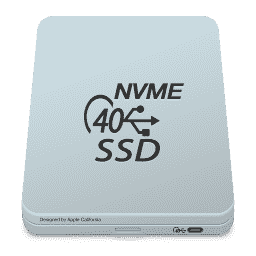 Drive 2023 - Extern SSD NVME 40G:Bituser-AqHKrylJvD
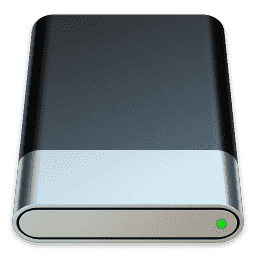 Drive White Stripeuser-UNyDgzgMI5
 Drive Grey Micro SD HCEmoopo-Design
 Drive 2024 Midnight - WD EX4100user-AqHKrylJvD
 Drive Grey AirportEmoopo-Design
 Drive - Raspberry Pi OSenergygap
 Drive Teal Stripeuser-UNyDgzgMI5
 Drive Red Stripeuser-UNyDgzgMI5
 Drive Grey FloppyEmoopo-Design
 Drive Grey Sharepoint FamilyEmoopo-Design
collections.drive_icons.howToTitle
collections.drive_icons.step1.title
collections.drive_icons.step1.body
collections.drive_icons.step2.title
collections.drive_icons.step2.body
collections.drive_icons.step3.title
collections.drive_icons.step3.body
collections.drive_icons.step4.title
collections.drive_icons.step4.body
Frequently asked questions
collections.drive_icons.faq1.q
collections.drive_icons.faq1.a
collections.drive_icons.faq2.q
collections.drive_icons.faq2.a
collections.drive_icons.faq3.q
collections.drive_icons.faq3.a
collections.drive_icons.faq4.q
collections.drive_icons.faq4.a